
| Guidelines |
Nick Edgar, Kevin Haaland, Jin Li and Kimberley Peter
Last Updated: February 2004
Eclipse is a universal tool platform - an open, extensible IDE for anything, but nothing in particular. The real value comes from tool plug-ins that "teach" Eclipse how to work with things - Java™ files, Web content, graphics, video - almost anything you can imagine. Eclipse allows you to independently develop tools that integrate with other people's tools so seamlessly, you won't know where one tool ends and another starts. The very notion of a tool, as we know it, disappears completely.
The platform is very flexible and extensible, but this flexibility has a serious drawback. In particular, there is no way within the program to ensure user interface consistency between the registered components within the platform. This document attempts to reconcile this problem, by defining standard user interface guidelines for the creation of new components. If these guidelines are adopted within your own tools, it will lead to greater consistency with the platform and other tools, and an easier learning curve for your customers.
These guidelines are intended for use by designers and implementors
of an Eclipse user interface extension.
The workbench is a collection of windows. Each window contains a menu bar, a toolbar, a shortcut bar and one or more perspectives.
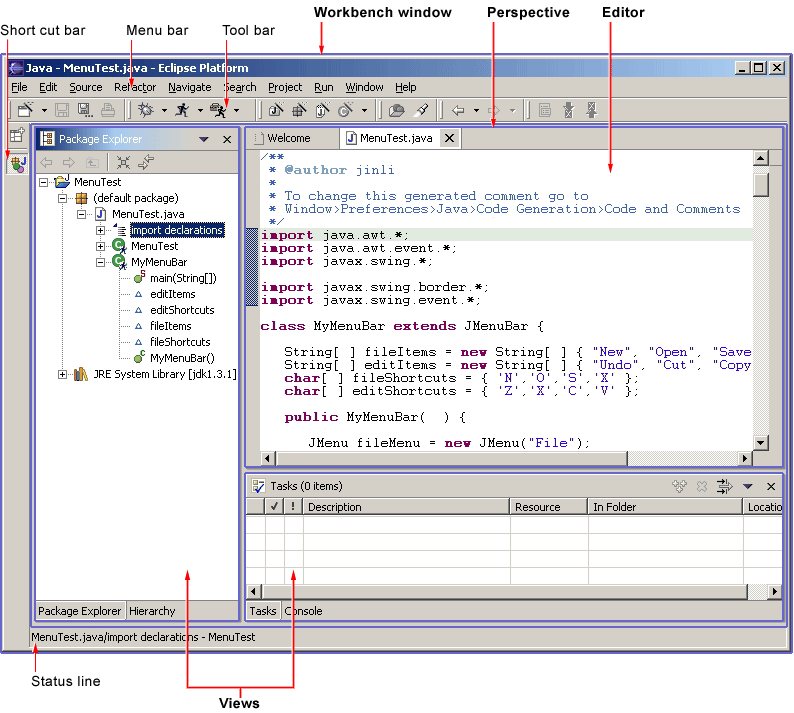
A perspective is a visual container for a set of views and content editors. The views exist wholly within the perspective and are not shared, but any opened content editors are shared across perspectives. If two or more perspectives have the same view opened, they share the same instance of the view although its layout may differ in the perspectives. For perspectives in different Workbench windows, neither editors nor views are shared. A perspective is like a page within a book. It exists within a window along with any number of other perspectives and, like a page within a book, only one perspective is visible at any time.
The Workbench's main menu bar usually contains the File, Edit, Navigate, Project, Window, Help top-level menus. Other top-level menus that are in between the Edit and Project menu are typically context specific, based on the current active perspective, front most editor (whether active or not), and active view..
In the File menu you will find a New submenu, which contains menu items for Project, Folder, and File creation. The File menu also contains menu items for Import and Export, which are used to import files into the Workbench, and export them out again. In the Edit menu, you will find familiar commands like Cut, Copy, Paste, and Delete. These commands are known as global commands, and target the active part. In other words, if the Delete command is invoked with the Navigator active, the actual implementation is performed by the Navigator. In the Project menu, you will find project related commands such as Open project, Close project and Rebuild project are available. In the Run menu, you will find commands related to running and debugging application code, and launching external tools such Ant scripts. In the Window menu, you will find the Open Perspective submenu to open different perspectives to suit to needs of your development tasks. You will find perspective layout management menu items. You will also find the Show View submenu to add views to the current Workbench window. In addition, you will find the Preferences menu item, which is used to modify the functional preferences of the Workbench.
As a plug-in developer, you can contribute new views, editors, wizards, menu, and tool items to the platform. These contributions are defined using XML, and once registered, integrate seamlessly with the components which already exist in the platform.
This document is intended for UI designers and developers. With this audience in mind, we can talk about the two main layers of any application: the model layer and the user interface layer. In the model layer of Eclipse, known as the Workspace, is a collection of resources (projects, folders and files). The user interface, or the Workbench, defines the presentation for those resources.
As a UI developer, you will also have a model and a presentation. If we assume that your goal is to make the model visible, through some presentation, most developers will start out by adding a new view or editor to the workbench.
In Eclipse, an editor is used to contain the primary content, such as a document or data object, which users interact with. In every case, this content is the primary focus of attention and a reflection of the primary task. To illustrate this concept, let's look at some common examples.
To do Java programming, the primary task is to create, edit, and debug Java code. The primary focus is the Java code, so an editor is used to interact with that code. The navigator, outline, and properties view exist to support the primary task, but rarely hold your attention for an extended period of time while you are writing Java code.
To read email, the primary task is to create, send, read, and reply to email. The primary focus is a particular email message, so an editor is used to view or reply to an email message. A view may be used to select an email message to read, and open an editor.
To communicate using instant messaging, the primary task is the conversation. The primary focus is a particular conversation, so an editor is used to carry on that conversation. A view may be used to list people with whom you can initiate a conversation.
To browse the Web, the primary task is reading. The primary focus is a particular Web page, so an editor is used to browse the Web page.
In each case, the primary task determines the primary focus of attention. As the primary focus of attention, it deserves a primary position in the UI (as an editor), and can contribute commands to the workbench's main menu bar and toolbar.
A view may be used to save your favorite links, and reopen them. At any time, you may decide to edit the page you are looking at. This causes a new editor to open. Views are used to support the primary task. You use them to navigate a hierarchy of information, open an editor, or view properties for the active part. Each view may have its own local toolbar and local menu bar.
Once you have added a view or editor, an interesting question arises. Where did this model come from? In Eclipse, most data is created using a creation wizard. You may want to add a creation wizard too. And once an object exists, you may need a way to edit the properties for that object using a properties page, or the properties dialog.
All of these ideas will be discussed, in detail, in the following sections.
It is expected that you already have a basic understanding of the Eclipse UI architecture and APIs, and the basic UI design principles: user in control, directness, consistency, forgiveness, feedback, aesthetics, and simplicity. If you do not currently have the prerequisite knowledge, please read the relevant documentation first.
 Guideline 1.1
Follow and apply good user interface design principles: user in control, directness, consistency, forgiveness, feedback, aesthetics, and simplicity.
If you're in doubt about the appropriate look and feel for a tool, look to the platform first, then the Java development tooling and the Plug-in Development Environment (PDE) in Eclipse for guidance. In many cases, the workflow you imagine may already exist in Eclipse. If so, adopt the platform's workflow and user interface conventions. This will lead to greater consistency with the platform and other plug-ins, and an easier learning curve for your customers.
In some scenarios, it may be tempting to ignore the workflow of Eclipse and implement a "custom" user interface. This interface will almost certainly stand out like a sore thumb in an integrated environment, where other tools adopt the platform conventions. You lose the benefit of past experience, and force your customers to learn new ideas.
Consult the Best Practices section for examples and more information.
Also, visit the Eclipse platform newsgroups to share information with the community.
Guideline 1.2
Follow the platform lead for user interface conventions.
Guideline 1.3
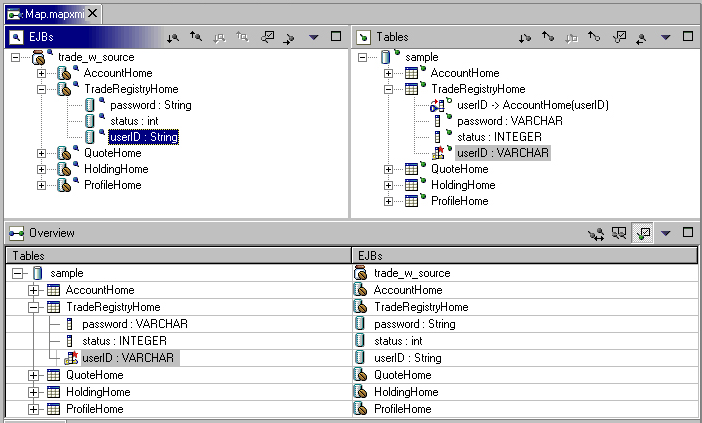
Be careful not to mix UI metaphors. It may blur the original concept, and your own application.
Visit www.eclipse.org and join the Eclipse UI mailing list platform-ui-dev.
Guideline 1.4
If you have an interesting idea, work with the Eclipse community to make Eclipse a better platform for all.
Sentence style capitalization should be applied to all check boxes, radio buttons, and group labels. For example, "Choose an option for the Java file" can be used as a group label.
Guideline
1.5
Use Headline style capitalization for menus, tooltip and all titles, including those used for windows, dialogs, tabs, column headings and push buttons. Capitalize the first and last words, and all nouns, pronouns, adjectives, verbs and adverbs. Do not include ending punctuation.
Guideline 1.6
Use Sentence style capitalization for all control labels in a dialog or window, including those for check boxes, radio buttons, group labels, and simple text fields. Capitalize the first letter of the first word, and any proper names such as the word Java.
Consult the Best Practices section for examples and more information.
Guideline 1.7
Create localized version of the resources within your plug-in.
Please refer to Wizards section for guidelines on how to handle user input errors in a wizard.
Please refer to Editors section for guidelines on how to handle errors occur in an editor, .
When an error occurs which requires either an explicit user input or immediate attention from users, a modal dialog should be used to communicate the error to the user. This forces the user to notice, and deal with the problem.
Guideline
1.8
When an error occurs which requires either an explicit user input or immediate attention from users, communicate the occurrence with a modal dialog.
If a programming error occurs in the product, an error dialog should be used to communicate the occurrence to the user. The error should also be logged using the workbench error logging facility. This gives the user an opportunity to restart the platform, uninstall the corresponding feature, and contact their system administrator.
The plug-in should provide the following information in the detail area of the error dialog:
Guideline
1.9
If a programming error occurs in the product, communicate the occurrence with a dialog, and log it.
All visual user interface elements created for Eclipse follow a common style called the Eclipse visual style or Eclipse style. In these guidelines you will find basic design information, as well as specifications for implementing Eclipse style icons and wizard graphics in tools based on the Eclipse framework.
Following these guidelines will help ensure consistency of visual user interface elements and their implementation across the Eclipse tools and plug-ins. Consistency of these elements includes visual semantic, style, and implementation considerations. These topics are covered in the following sections.
In the development of the Eclipse style icons, a visual language was formed to describe a variety of concepts in the user interface. These concepts are now represented by a large selection of tiny visual signs that many have come to know through using Eclipse tools.
In order to ensure a consistent visual experience, understanding of concepts across the tools, and minimize confusion for the user, we encourage you to re-use Eclipse style graphical elements whenever possible.
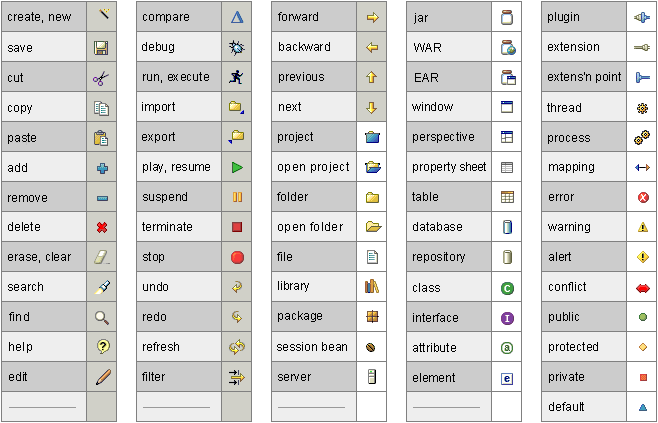
A great many icons have already been created in the Eclipse visual style so there is a good chance many of the icons or graphical elements you may need already exist. A sample of the core concepts is shown in the following table. Each of these elements carries with it a specific meaning, so care should be taken when using them to ensure that consistent meaning is maintained.
Guideline 2.1
Re-use the core visual concepts to maintain consistent representation and meaning across Eclipse plug-ins.
Various palettes used in creating Eclipse style icons. There are 3 different palettes used to create the 3 different icon states, as follows:
Eclipse style icons should be designed using a special 256 color palette that consists of 20 standard colors and 236 custom colors, as shown below.
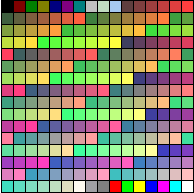
NOTE: Although the color palette shown is based on the standard windows .aco color palette that comes with Adobe Photoshop, these two palettes are NOT the same and ONLY the shown color palette should be used when creating Eclipse style icons.
Guideline 2.2
Use the Eclipse 256 color palette for creating the active or selected state of all icon types.
To create grayscale, enabled versions of your full color icons, you will need to use another palette that consists of the 8 colors shown below:

Guideline 2.3
Use the Eclipse 8 color palette for creating the enabled state of perspective, view, toolbar, toolbar wizard, and local toolbar icons.
To create grayscale, disabled versions of your full color and enabled icons, you will need to use a subset of the 8 color palette, that consists of the 2 colors shown below:
Guideline 2.4
Use the Eclipse 2 color palette for creating the disabled state of toolbar, toolbar wizard, and local toolbar icons.
The Eclipse style icons have been categorized into separate types so that each can be optimized for its specific location within the user interface. Below is a breakdown of these types and where they are located.
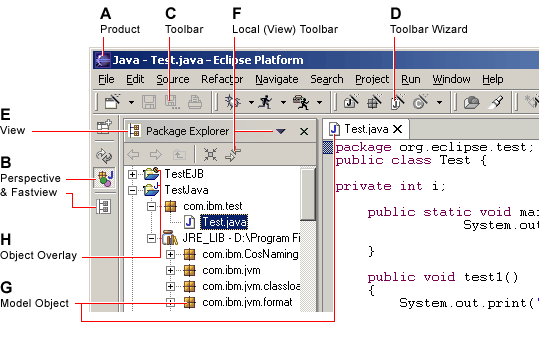
A Product
The Product icon represents the branding of the product, and is always located on the far left
of the window title bar before the perspective, document, and product name.
B Perspective and Fastview
Perspective and fastview icons are found down the left side of the workbench. These icons allow the user to quickly
switch between different opened perspectives, or to invoke different views
that have been created as fastviews.
C Toolbar
Toolbar icons are found on the main toolbar across the top of the workbench. These icons invoke
a command, either globally or within the editor.
D Toolbar Wizard
Toolbar wizard icons are found on the main toolbar across the top of the workbench.
They are easily recognized by their wand and sparkle. Selecting one of these
icons will launch a wizard.
E View
View icons are found on the left side of the titlebar of
each view within the workbench. These icons indicate each view’s function.
F Local (View) Toolbar
Local toolbar icons are found to the right of the view icon on the titlebar of each view
within the workbench. These icons invoke a command on objects in that view only. Local toolbar icons
are also found in all menus, including main, pull down, and context menus.
G Model Object
Model Object icons are found in tree views, list views, and on Editor Tabs within the the workbench
(such as files, folders, projects and so on).
H Object Overlay
Object overlay icons are also found in tree or list views. They are appended to the various
corners of model object icons as signifiers of some sort of change.
Guideline 2.5
Use the appropriate icon type in the location it is designed for within the user interface.
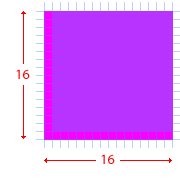
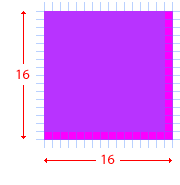
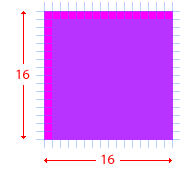
With few exceptions, Eclipse style icons are designed within an area of 16 x 16 pixels. Within that area, a 15 x 15 pixel space is reserved for the image itself, leaving both a vertical and horizontal line of empty pixels to allow for proper placement of the image within the interface. Note the location of the empty pixels in the samples below. The icons are cut with the specific placement shown to ensure alignment in the user interface.
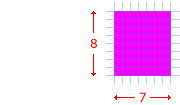
The diagrams below show the proper sizing of the separate types of icons, and their proper placement within the allotted screen space.
|
View Icons
|
|
Perspective Icons
|
|
Toolbar Icons
|
|
|
Model Object Icons
|
|
Object Overlay Icons
|
Guideline 2.6
Follow the specific size specifications for each type of icon.
Guideline 2.7
Cut the icons with the specific placement shown to ensure alignment in the user interface.
To follow from the specific size and placement of the different types of icons within their allotted screen space, the following positioning guidelines will help with the alignment of these elements relative to one another, and will aid in creating a well organized and aesthetically integrated user interface. (All measurements are in pixels.)
(Includes Toolbar and Toolbar Wizard Icons)
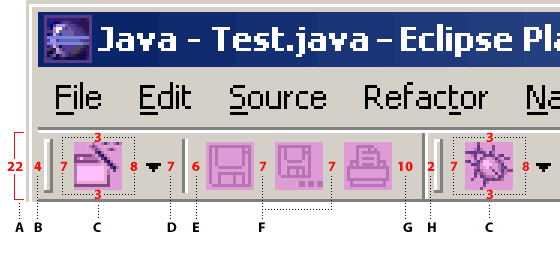
| Item | Positioning and Spacing | ||
| A | Toolbar | 22 pixels high | |
| B | Between left margin and handle | 4 pixels | |
| C | Between handle and first icon | 7 pixels | |
| C | Between icon and top of toolbar | 3 pixels | |
| C | Between icon and bottom of toolbar | 3 pixels | |
| C | Between icon and twisty | 7 pixels | |
| D | Between twisty and hard rule | 7 pixels | |
| E | Between hard rule and icon | 6 pixels | |
| F | Between icons | 7 pixels | |
| G | Between icon and hard rule | 10 pixels | |
| H | Between hard rule and handle | 2 pixels |
(Includes View and Local Toolbar Icons)
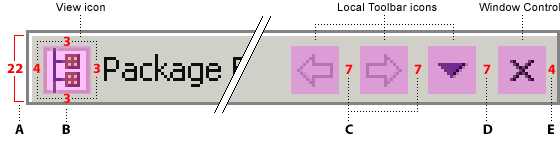
| Item | Positioning and Spacing | ||
| A | Title bar | 22 pixels high | |
| B | Between left margin and view icon | 4 pixels | |
| B | Between view icon and text label | 3 pixels | |
| B | Between title bar icons and top of title bar | 3 pixels | |
| B | Between title bar icons and bottom of title bar | 3 pixels | |
| C | Between local toolbar icons | 7 pixels | |
| D | Between last local toolbar icon and closing window 'x' | 7 pixels | |
| E | Between closing window 'x' and right margin | 4 pixels |
(Includes Perspective and Fastview Icons)
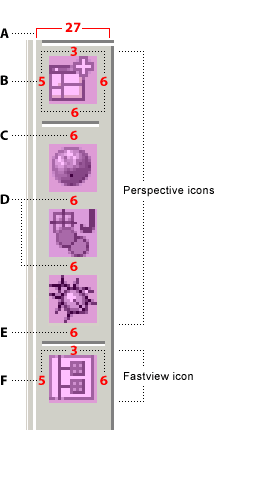
|
Perspective Icons
Fastview Icons
|
(Model Object Icons)
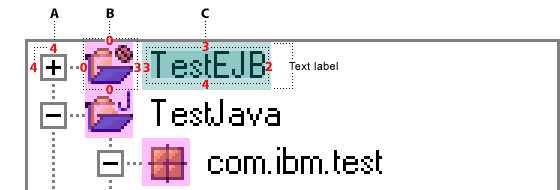
| Item | Positioning and Spacing | ||
| A | Between “+/-” widget and left of window | 4 pixels | |
| A | Between “+/-” widget and top of window | 4 pixels | |
| B | Between top of window and first icon | 0 pixels | |
| B | Vertically between icons | 0 pixels | |
| B | Between horizontal treeview branch and icon | 0 pixels | |
| B | Between icon and text label | 3 pixels | |
| C | Text is nested within the text label | 3 pixels each on left and top, 2 pixels on right, 4 pixels on bottom (length varies) |
As stated under Icon Size & Placement, all overlays are consistently the same size: 7 x 8 pixels. An additional white border keyline is included on Project Nature and Java Overlay types to visually separate them from the underlying Model Object icon. The keyline location varies depending on the overlay's placement on the underlying icon.
Project Nature OverlayThe project nature overlays are displayed in the Navigator and the Package views. They are completely superimposed on the model object at the top right corner of the 16 x 16 icon space.
Only a few project nature overlay icons have been created to prevent crowding in the interface. Project nature overlays quickly identify the various types of projects that can be contained in the Navigator and mirroring views.
The white keyline border is applied around the image to enhance legibility.
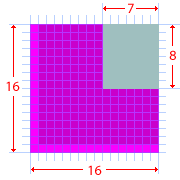
The auxiliary overlays are displayed in all tree views. This type of overlay is completely superimposed on the model object at the bottom left corner of the 16 x 16 icon space.
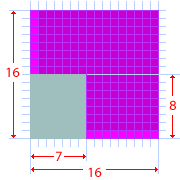
The auxiliary overlay quickly identifies the status of an object. Examples of auxiliary overlays are warning, error, failure, and success.
The Java overlays are displayed in the Outline, Hierarchy, and Package views. The Java overlays are appended to the model object icon, so they extend the 16x16 icon space. They are placed to the right of a model object icon, overlapping the 16x16 model object space by 3 pixels. A maximum of 3 java overlays can be put on the model object.
The order in which an overlay appears depends on the order in which it has been assigned. In designing Java overlays, it is
important to make sure the base object icon can support the addition of overlays without compromising readability. Note that there
are two Java overlays that always display at the bottom right corner — 'C' position in the layout shown below — of the
model object:
 synchronized (method) and
  run (class).
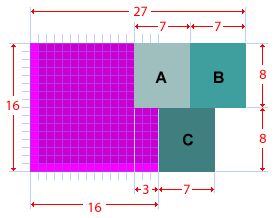

Java overlays identify attributes of an object. Examples of Java overlays are static, final, abstract, and synchronized.
Note: In the Hierarchy and Outline views, the Java overlays are appended to the right of the model object as shown, but in the Package view they are stacked over the model object.
Version control overlays are displayed in the Navigator view and in the Structure View of the Merge Editor in CVS. When they are displayed in the Navigator view, the overlay is completely superimposed on the model object at the right of the 16 x 16 icon space.
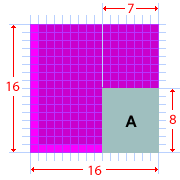
When the version control overlays are displayed in the Structure View of the Merge Editor in CVS, they are appended to the model object, so they extend the 16x16 space. They are placed to the right of a model object icon, overlapping the 16x16 model object space by 3 pixels. In CVS there is a maximum of 2 overlays on the right of the object.
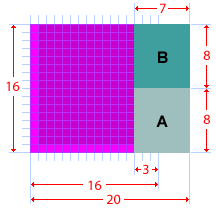
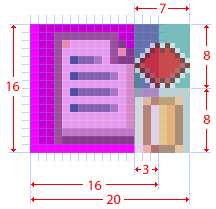
Version control overlays identify a transition-state of an object. Examples of CVS overlays are incoming, outgoing, in conflict, added, deleted, and changed.
Guideline 2.8
Follow the positioning guidelines for the different types of icons for optimal alignment of these elements relative to one another.
The Wizard Palette section shows the
the special blue 183 color palette you will need to create your wizard graphics.
Eclipse style wizard banner graphics should be designed using a special blue 183 color palette,
as shown below.
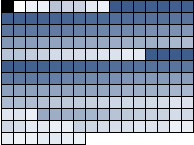
Guideline 2.9
Use the Eclipse special blue 183 color palette for creating wizard graphics.
The Wizard Sizing section gives the sizing guidelines for
creating wizard banner graphics.
All wizard banner graphics are designed to fit within a specified screen space that is
75 pixels wide x 58 pixels high, in the top, right corner of the wizard.
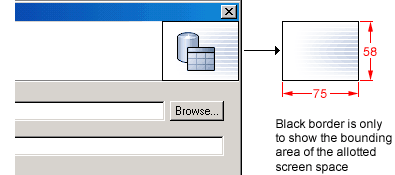
The actual size of each wizard banner graphic will vary depending on the elements involved, but should not exceed 55 pixels wide x 45 pixels high.
Within the wizard banner space allocation, there is no firm rule for where to place the wizard banner graphic. Generally, the graphic is centered vertically, and off-center to the left horizontally.
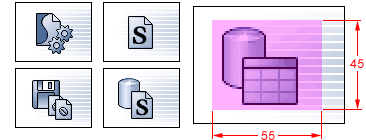
Guideline 2.10
Follow the specific size specifications for wizard graphics.
Guideline 2.11
Cut the wizard graphics with the specific placement shown to ensure alignment in the wizard banner area.
Eclipse provides a set of directory names and structure for storing and accessing user interface graphics easily in any plug-in. This section describes the naming conventions and directory path used in Eclipse. If followed, the predefined directory names and path allow for the icon and wizard graphic files to be implemented directly into the plug-in structure without any need for modifications.
From icon request to delivery, the naming and structure is the same. If you use a different user interface directory name or more than one directory to store graphics than that specified at request time, notify your visual design contact of these changes so that they can maintain a parallel system. Further, keeping the number of directories in which you store your graphics to a minimum, will reduce unnecessary duplication of graphics and ease resource management issues considerably.
Once your icons have been conceptualized, designed, approved and cut, they are stored using the directory naming convention and structure described below.
The following image shows a complete directory structure for a plug-in.
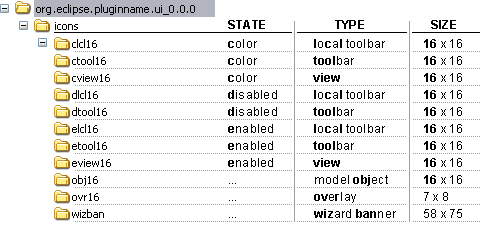
NOTE:
Guideline 2.12
Follow the predefined directory structure and naming convention.
Guideline 2.13
Keep the original directory names provided.
Guideline 2.14
Minimize duplication of graphics within a plugin by keeping all graphics in one, or few, first level user interface directories.
Guideline 2.15
Use the active, enabled, and disabled states provided.
Establishing file names before the icons are designed will help ensure appropriately descriptive names for the concepts they represent, and may prevent misuse of icons for purposes not intended and duplicate file names. If the names are well considered in advance, you will appreciate being able to quickly make the distinction between icon types and find concepts more readily, especially as the volume of your graphic resources increases.
File suffixes are useful for making the distinction between types of user interface elements. They can be used to denote the location or function of an icon or wizard graphic. The following table shows how suffixes are being used for image file names in Eclipse:
| Filename Suffix | Used for icons with the following function or location: | Icon Type and Location |
| *_wiz.gif | invoke a wizard, or are graphics within a wizard | Wizard banner graphics: used in wizard dialog windows. Wizard icons: used on wizard toolbars. |
| *_exec | invoke executable files | Toolbar icons: used in cascading menus, and global toolbars. |
| *_edit | are in an editor view | Toolbar icons: used in cascading menus, and global toolbars. |
| *_nav | are in a navigator view | Toolbar icons: used in cascading menus, and global toolbars. Local toolbar icons: found on the far right of the title area of a view. View and perspective icons: found in the top, left corner of a view. |
| *_misc | do no fit into any of the other categories | Toolbar icons: used in cascading menus, and global toolbars. View and perspective icons: found in the top, left corner of a view. |
| *_tsk | represent tasks that user can do | Local toolbar icons: found on the far right of the title area of a view. Overlay icons: placed on top of a model object icon to indicate a change in condition. Object icons: used in the tree view, list view, and properties view. View and perspective icons: found in the top, left corner of a view. |
| *_mode | toggles the working mode of the view | Local toolbar icons: found on the far right of the title area of a view. |
| *_menu | are found in a menu | Local toolbar icons: found on the far right of the title area of a view. |
| *_ps | are found in a property sheet | Local toolbar icons: found on the far right of the title area of a view. View and perspective icons: found in the top, left corner of a view. |
| *_obj | represent model objects | Model object icons: used in the tree view, list view, and properties view. |
| *_pal | are model object icons on object palettes | Model object icons: used on object palettes |
| *_co | is for commands that engage the system, e.g. build command | Toolbar icons: used in cascading menus, and global toolbars. Local toolbar icons: found on the far right of the title area of a view. |
To aid you in choosing your file names, we offer the following guidelines:
Guideline 2.16
Abbreviate file name instead of using the full icon name, e.g. New Interface becomes "newint".
Guideline 2.17
Use lower case characters in your file names, e.g. DTD becomes "dtd".
Guideline 2.18
Use 10 characters or less in your file names if possible (underscores count as a character).
Guideline 2.19
Use a file name suffix that describes its location or function in the tool, e.g. newint_wiz.
Guideline 2.20
Use transparent *.gif format for all user interface icons and wizard graphics, unless the context requires a different file format.
Guideline 2.21
Keep the original file names provided.
As a plug-in developer, you can contribute commands to the window menu bar and toolbar, or to individual views and editors. Contribution to the window is performed using an action set, a set of task oriented commands which the user can show or hide. Contribution to a view or editor is performed using individual command.
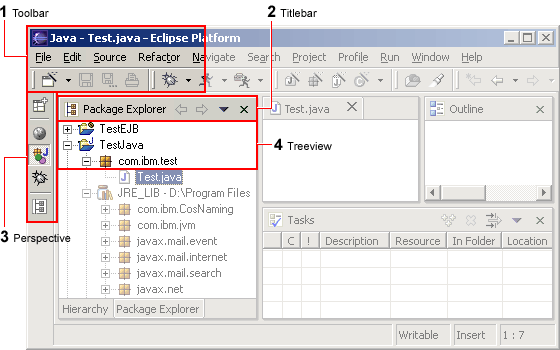
Here is an illustration of the main areas of contribution.
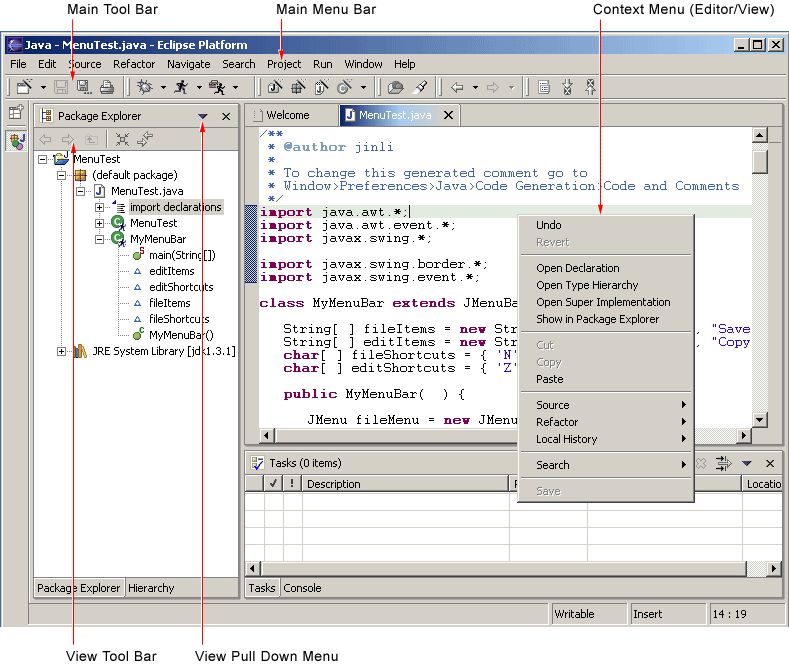
In this section we'll look at general command guidelines. For information on window, view, or editor specific guidelines, see Windows, Views, and Editors.
Each command must provide one full color image. This image will be displayed if the mouse is placed over the command. It will also be used to generate the enabled, disabled, and pressed images which appear in normal command use. Commands which are contributed in code also have the option to define explicit images for enabled, disabled, and roll over. This option can be used for greater control over image appearance.
The following snapshot shows the valid use of Headline capitalization in a toolbar.
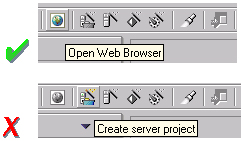
Guideline
3.1
Each command must have a label, tool tip, and full color image. The label and tool tip must use Headline style capitalization.
The tool tips for a command should describe the behavior which occurs if the command is invoked, independent of the current state. For push buttons, the label should decribe the result of users pushing the button. For toggle buttons, it should describe its effect when the item is toggled on, and the label should not change depending on the state of the button. In Eclipse version 2.1, it is recommended that the tool tip for a command uses the same text as that for the command label. For instance, in the following snapshot the behavior of the Show Type Hierarchy button is shown using one tool tips text.
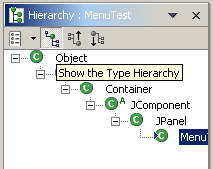
Guideline
3.2
The command tooltip should describe the result of the command, not the current state of the command. Use the text same as that for the command label.
For consistency, any command which has a similar behavior to existing commands in the workbench, should adopt the same terminology.
When creating a resource, the term "New" should be used in a command or wizard. For instance, "New File", "New Project" and "New Java Class". The term "Delete" should be used when deleting an existing resource.
When creating an object inside a resource (e.g., a tag in an XML file; a method or field in a Java class), the term "Add" should be used; the user is adding something to an existing resource.
Guideline
3.3
Adopt the labeling terminology of the workbench for New, Delete and Add commands.
Guideline
3.4
A command should only be enabled if it can be completed successfully.
Command enablement should be quick to calculate. If it is too expensive to calculate the enablement of a command, the command should be optimistically enabled. If the command is invoked, it should calculate the real enablement, and show a dialog to the user if it is not available.
Guideline
3.5
Command enablement should be quick. If command enablement cannot be quick, enable the command optimistically and display an appropriate message if the command is invoked, but cannot be completed.
Guideline 4.1
When a dialog opens, set the initial focus to the first input control in the container. If there are no input controls, the initial focus should be assigned to the default button.
Slush Buckets should also have the following control buttons, in this
order, for moving objects from the source the selected buckets.
| Button | Function |
| > | Add whatever is selected on the left to the right |
| < | Remove selected items from the right |
| >> | Add all (whether they are selected or not) |
| << | Remove all |

Guideline 4.2
Slush Bucket widget (or Twin Box) should flow from left to right with the source objects on the left hand side. It should have the >, <, >>, << control buttons in this order.
Guideline
5.1
Use a wizard for any task consisting of many steps, which must be completed in a specific order.
At the bottom of each wizard, a Back, Next, Finish, and Cancel button should appear.
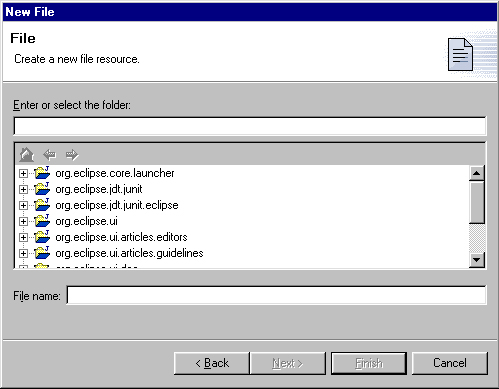
Guideline
5.2
Each wizard must contain a header with a banner graphic and a text area for user feedback. It must also contain Back, Next, Finish, and Cancel buttons in the footer.
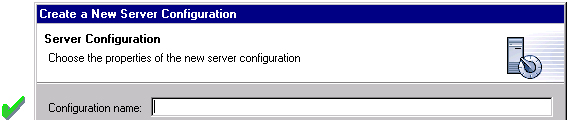
It is not appropriate to display an error message. At this point, the user hasn't done anything yet.
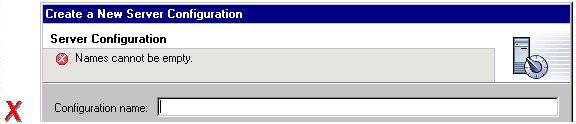
Guideline
5.3
Start the wizard with a prompt, not an error message.
The initial state of the wizard should be derived from the context where it is opened. For instance, in the New File wizard, the current workbench selection is examined. If it points to a valid project or folder, the wizard will pre-populate the parent field with the parent project or folder name, and put cursor focus in the next field requiring user input. If the user's selection does not point to a valid parent project or folder, the wizard will not pre-populate the folder name. Instead, it will leave the field blank and put the cursor focus in the field. When the user's selection is on a file, a wizard may also go through these calculations using the parent folder or project of the file.
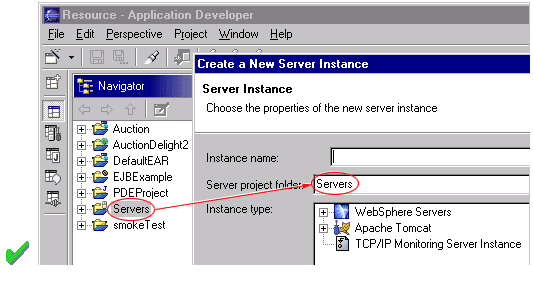
Guideline
5.4
Seed the fields within the wizard using the current workbench state.
If dialog information is absent or invalid, the Next or Finish buttons should be disabled until the situation is resolved. When resolution occurs, and all of the information has been provided, the Next or Finish buttons may be enabled.
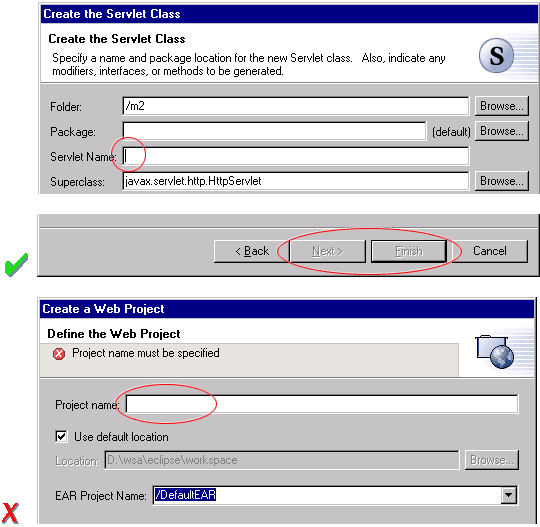
Error messages should only be displayed when user input is invalid.
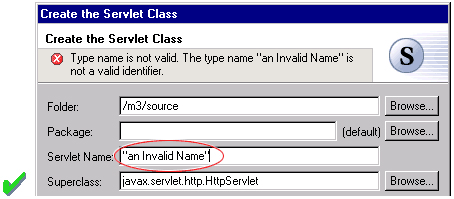
Guideline
5.5
Validate the wizard data in tab order. Display a prompt when information is absent, and an error when information is invalid.
Guideline
5.6
Only enable the Next / Finish buttons if all required information in the dialog is present and valid.
The error messages in a wizard should be intended for the end user, not the developer. With this in mind, message IDs should never be presented as part of the error text in the wizard's header area.

Guideline
5.7
Remove all programming message ID's from wizard text.
For instance, in the New Java Class wizard, a "Browse..." button is
placed beside the "Super Class" edit field. If the browse button
is pressed, a Browse Dialog will appear, and the user can select a super
class. This pattern should be used whenever a link will be established
between a new object and an old one. The "Browse..." button should
be located to the right of the edit field.
Guideline
5.8
Use a Browse Button whenever an existing object is referenced in a wizard.
In the Browse Dialog, invalid choices should not appear. When the dialog is closed, and focus returns to the parent control, refresh the enablement state of controls within the dialog. In particular, refresh the enablement of Next, Finish, and OK buttons.
An example of valid and invalid filtering is shown in the following snapshot.
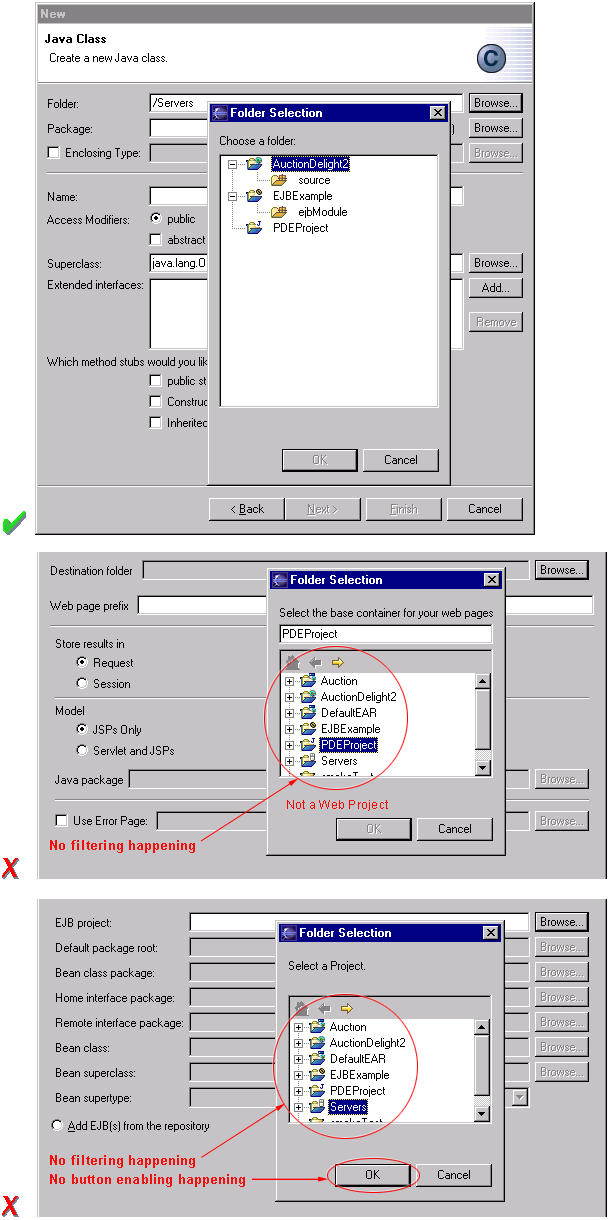
Have a readme.html file for every example project, and open that readme.html automatically upon project creation. This will give users an immediate overview of the example: what it does, prerequisites, limitations, steps to take, and so on.
Guideline
5.9
If a new file is created, open the file in an editor. If a group of files are created, open the most important, or central file in an editor. Open the readme.html file upon creation of an example project.
If a new project is created, the wizard should change the active perspective within the workbench to one which is appropriate for the new project type. In Eclipse v2.1, users are prompted to confirm the switch to the preferred perspective when creating a new project. To avoid loss of context, plug-ins should use this, and not automatically switch without prompting. If users want to switch automatically in the future, they can choose "Do not show this message again" in the confirmation dialog.
Guideline
5.10
If a new project is created, prompt users and change the active perspective to suit the project type.
In either case, where a file, folder, or project is created, the wizard should select and reveal the new object in the appropriate view. This provides concrete evidence to the user that, yes, the new object was created and now exists.
Guideline
5.11
If a new object is created, select and reveal the new object in the appropriate view.
In many situations, the creation of a resource may involve the creation of a project or folder to contain the resource. If the containing project or folder can be created from within the wizard (with a very reasonable set of defaults), the wizard should allow it. If the creation of such resources requires detailed user interaction in order for parent project or folder to be set up correctly, the wizard should not attempt to do this. Instead, the wizard error text should instruct the user that "The specified project does not exist".
The EAR Import wizard in IBM's WebSphere Studio is an example where allowing the user to specify the name of the parent project in place makes for a much more usable interaction. In this case, based on the user provided name, the wizard goes off and creates not only the EAR project itself, but also any web projects, etc., that may be needed as well.
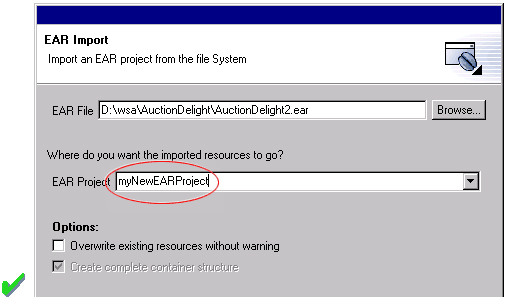
Guideline
5.12
Create folder objects in a wizard if reasonable defaults can be defined.
Guideline
5.13
Use the term "Project name" for the input field label when the item must be a Project; otherwise, use the term "Folder name". Do not qualify the term.
Guideline
6.1
Use an editor to edit or browse a file, document, or other primary content.
Modifications made in an editor follow an open-save-close lifecycle model. When an editor first opens, the editor contents should be unmodified (clean). If the contents are modified, the editor should communicate this change to the platform. In response, an asterisk will appear in the editor tab. The modifications should be buffered within the edit model, until such a time as the user explicitly saves them. At that point, the modifications should be committed to the model storage.
Guideline
6.2
Modifications made in an editor must follow an open-save-close lifecycle model.
An editor is document or input-centric. Each editor has an input, and only one editor can exist for each editor input within a page. This policy has been designed to simplify part management.
Guideline
6.3
Only one instance of an editor may exist, for each editor input, within a perspective.
In addition, it should be possible to open a separate instance of an editor for each different input.
Guideline
6.4
It must be possible to open a separate instance of an editor for each different input.

Guideline
6.5
The editor should be labeled with the name of the file, document, or input being edited.
If the editor contains more than one page, a tab control should be used for page activation. The use of this control is demonstrated by the plugin file and html editors.
Tab labels should be kept to one word, and two words at most.
Guideline
6.6
In multipage editors, use a tab control for page activation.Tab labels should be kept to one word, and two words at most.
Guideline
6.7
All of the commands, except for the obvious commands, available in the editor should be added to the window menu bar.
The following format is recommended, to ensure consistency across Eclipse
and better ease of use.
| Edit | (one or more editor specific menus) | Window |
| Add any object centric commands here | (commands belong to the specific menus) | Actions to control what you see in the editor. |
Guideline
6.8
Use the standard format for editor contributions in the window menu bar.
The window menu bar contains a number of global commands, such as Cut, Copy, and Paste in the Edit menu. These commands target the active part, as indicated by a shaded title area. If these commands are supported within an editor, the editor should hook these window commands, so that selection in the window menu bar or toolbar produces the same result as selection of the same command in the editor. The editor should not ignore these commands, and contribute duplicate commands to the window menu bar or toolbar.
A complete list of the global commands is declared in the IWorkbenchActionConstants.java (see below).
/**
* From IWorkbenchActionConstants.
* Standard global
commands in a workbench window.
*/
public static final
String [] GLOBAL_ACTIONS = {
UNDO,
REDO,
CUT,
COPY,
PASTE,
PRINT,
DELETE,
FIND,
SELECT_ALL,
BOOKMARK
};
Guideline
6.9
If an editor has support for Cut, Copy, Paste, or any of the global commands, these commands must be executable from the same commands in the window menu bar and toolbar.
Guideline
6.10
Fill the editor toolbar with the most commonly used items in the view menu.
The use of a local toolbar within an editor is contrary to the design of the workbench. Within the workbench, the toolbar for an editor is shared with editors of the same type. This reduces the flash which occurs when you switch between editors, reduces the number of images and commands in the product, and creates a better feel of integration.
In a text editor, you may assume that there is only one type of selection: text. In this case, the contents of the context menu will remain consistent for any selection in the editor.
Guideline
6.11
Fill the context menu with selection oriented commands.
For consistency with other editors in Eclipse, each editor should adopt
a common order for commands within the context menu. This format is
shown in the following table. Within this table, each item represents
a category of commands. The categories within the context menu should
be kept distinct from one another through the use of separators.
| Undo / Redo |
| Add |
| Show In |
| Cut Copy Paste |
| Delete |
| Other Plugin Additions |
| Save |
Guideline
6.12
Use the standard format for editor context menus.
For good spatial navigation, fill the context menu with a fixed set of
commands for each selection type. Once the contents have been defined,
the enablement state of each command should be determined using the selected
object state. In doing so, you establish a consistency which makes
the menu more predictable, and easier to navigate.
Guideline
6.13
Fill the context menu with a fixed set of commands for each selection type, and then enable or disable each to reflect the selection state.
One of the primary goals for the platform UI is extensibility. In fact, it is this extensibility which gives you the freedom to add new views, editors, perspectives, and actions to the platform. Of course, extensibility is a two way street. While you may wish to extend the platform, others may wish to extend your view or editor. It is common for one plug-in to add actions to the menu, toolbar, or context menu of an editor from another plugin.
In the platform, the menu and toolbar for an editor are automatically extended by the platform. In contrast, context menu extension is supported in collaboration between the editor and the platform. To achieve this collaboration, an editor must register each context menu it contains with the platform. It should also define a command filter for each object type in the editor. A command filter makes it easier for one plug-in to add a command to objects in an editor defined by another plug-in. The target is described using object type and attributes. For more information on the implementation of this concept, refer to Creating an Eclipse View.
Guideline
6.14
Register all context menus in the editor with the platform.
Guideline
6.15
Implement a Command Filter for each object type in the editor.
If the editor does not contain any changes since the resource was last saved then the editor should be immediately closed.
Guideline
6.16
If the input to an editor is deleted, and the editor contains no changes, the editor should be closed.
If the editor contains changes to the resource since the resource was last saved (i.e., it is "dirty"), the editor should give the user a chance to save their changes to another location, and then close. Here is a sample of the dialog which should be displayed:
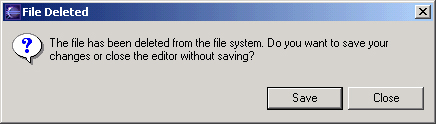
Guideline
6.17
If the input to an editor is deleted, and the editor contains changes, the editor should give the user a chance to save their changes to another location, and then close.
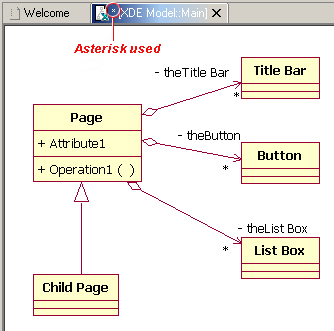
Guideline
6.18
If the resource is dirty, prefix the resource name presented in the editor tab with an asterisk.
A view is typically used to navigate a hierarchy of information, open an editor, or display properties for the active editor. An editor is typically used to edit or browse a file, document or other input object.This statement is appropriate whether a file is read-only or not. In either case, the user should be able to select the file, open it, and browse the contents within an editor. If the file is read-only, the File > Save command should be disabled and the File > Save As should be enabled. In the status bar area, "Read-only" should be shown instead of the default "Writable" message.
Guideline
6.19
Treat read-only editor input as you would any other input. Enable the Save As if possible. Display "Read-only" in the status bar area.
For instance, if you open a .java file in an editor, the structure of the class is displayed in the Outline view. If you select a method or field in the outline, the text declaration of that item will be selected and revealed in the editor. If you select a method or field, and open the context menu, you can interact with the item as a conceptual unit, rather than just a bunch of text.
In general, an editor should provide an outline model to the Outline view if the data within the editor is too extensive to see on a single screen, and will yield a structured outline. This structured outline makes it very easy to navigate through objects like a java file or html file.
Guideline
6.20
If the data within an editor is too extensive to see on a single screen, and will yield a structured outline, the editor should provide an outline model to the Outline view.
When an editor has an interaction with the Outline view, notification
about location should be two-way. That is, the user should be able to select
something in the outline and have the editor position updated, and the
user should be able to select something in the editor pane and have the
outline view updated.
A context menu should be available, as appropriate, in the outline view which should support creation operations as appropriate.
Guideline
6.21
Notification about location between an editor and the Outline view should be two-way. A context menu should be available in the Outline view as appropriate.
If the edit model contains errors or warnings, they should be indicated
in the Outline view. An error or warning image should be added to
the item with the error or warning respectively. A container should have a red X if it there are errors on the container itself, a gray X if any of its descendents have errors (but not the container itself), and no X if neither the container nor any of its descendents have errors. For instance, in the
following line, the addFastView method has an error, so an error image
is added to the item and its parent.
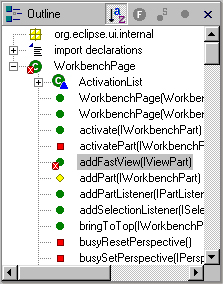
For this to work, care must be taken to design icons with overlay in mind, so that glyphs can be applied to the ancestor's icon.
Guideline
6.22
An error or warning image should be added to items with the error or warning respectively. A container should have a red X if it there are errors on the container itself, a gray X if any of its descendents have errors (but not the container itself), and no X if neither the container nor any of its descendents have errors.
In an editor, task objects are commonly used to mark a location within a document. Once a task has been created, it appears in the Task view. If the task is selected, you may reopen the editor at the location defined in the Task.
Guideline
6.23
If appropriate, implement the "Add Task" feature in your editor.
A bookmark object can also be used mark a location within a document. Once a bookmark has been created, it appears in the Bookmarks view. If the bookmark is selected, you may reopen the editor at the location defined in the Task.
Guideline
6.24
If appropriate, implement the "Add Bookmark" feature in your editor.
Guideline
6.25
Editors with source lines of text should show the current line and optionally column numbers the status line. It's optional for the editor to show line numbers for each line in the editor itself.
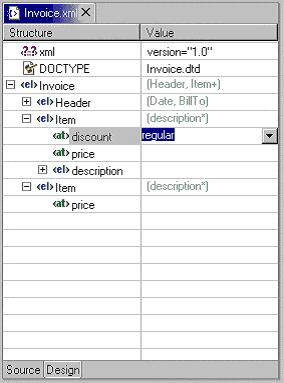
If the editor contains tables with editable cells, a single-click over a cell should select the current item and put the cell into edit mode. In edit mode, any dropdowns, buttons, or other controls in the cell should be rendered upon the single-click.
Guideline
6.26
Table cell editors should support the single-click activation model, and in edit mode, they should render complex controls upon single-click.
In addition, changes should be committed once a user clicks off
the cell or hits ENTER.
The following are examples of good behaviour for a table cell editor:
- when put in edit mode, drop-down appears with current selection active
& highlighted

- when cursoring through drop-down using arrow keys, it is possible
to move up and down any number of choices and the drop-down stays visible
until user makes an explicit selection

- first letter navigation is supported as a cursoring technique when
the drop-down is visible
- supports the "Enter" key as a way of making an explicit selection
via the keyboard when the drop-down is visible
- supports the "Esc" key as a way of canceling a selection via the
keyboard when the drop-down is visible
- when put in edit mode, the drop-down control (the down-arrow image) appears with current selection active
& highlighted

- when put in edit mode, it is possible to arrow key through the choices
to make a selection without needing to invoke the drop-down
Guideline
6.27
Changes made in a table cell editor should be committed when a user clicks off the cell or hits the "Enter" key. Selection should be cancelled when user hits the "Esc" key.First letter navigation should be supported as a cursoring mechanism within a cell.
Guideline
6.28
When performing fine-grain error validation in an editor, use red squiggles to underline the invalid content. When users move the mouse over the red squiggles, display the error text in a fly-over pop up box.
When the Save command is invoked in an editor, use the Task view for showing errors which are persisted.
Guideline
6.29
Use the Task view to show errors found when the Save command is invoked.
Guideline
6.30
If modifications to a resource are made outside of the workbench, users should be prompted to either override the changes made outside of the workbench, or back out of the Save operation when the Save command is invoked in the editor.
Guideline
7.1
Use a view to navigate a hierarchy of information, open an editor, or display the properties of an object.
Modifications made in a view should be saved immediately. For instance, if a file is modified in the Navigator, the changes are committed to the workspace immediately. A change made in the Outline view is committed to the edit model of the active editor immediately. For changes made in the Properties view, if the property is a property of an open edit model, it should be persisted to the edit model. If it is a property of a file, persist to file.
In the past, some views have tried to implement an editor style lifecycle, with a Save command. This can cause confusion. The File menu within a workbench window contains a Save command, but it only applies to the active editor. It should not target the active view. This leads to a situation where the File > Save command is in contradiction to the Save command within the view.
Guideline
7.2
Modifications made within a view must be saved immediately.
Within a perspective, only one instance of a particular view can be opened. This policy is designed to simplify part management for a user. The user opens a view by invoking Perspective > Show View. If, for any reason, they lose a view, or forget about its existence, they can simply invoke Perspective > Show view again to make the view visible.
Guideline
7.3
Only one instance of a view may exist in a perspective.
In a multi-tasking world, humans often perform more than one task at a time. In Eclipse, task separation can be achieved by creating a separate perspective for each task. In reflection of this, a view must be able to be opened in more than one perspective. If only one instance of a view may exist, the ability to multi-task is taken away.
Guideline
7.4
A view must be able to be opened in more than one perspective.
A view can be opened in two ways: by invoking Window > Show View > X menu, where X is the name of the view, or by invoking another command within the workbench. For instance, if you select a class in the Packages view, and invoke Open Type Hierarchy, a Hierarchy view opens with the class hierarchy for the selection.
It should be possible to open any view from the Window > Show View menu, either as an explicit item within the menu, or as an item within the Window > Show View > Other... dialog.
Guideline
7.5
A view can be opened from the Window > Show View menu.
The view label in the title bar must be prefixed with label of the view in Perspective > Show View menu. Given that it is impossible to change the entry in the Show View menu, this means you cannot change the name of a view. However, you can add additional text to the view label, to clarify the state of the view.
Guideline
7.6
The view label in the title bar must be prefixed with the label of the view in the Perspective > Show View menu.
In most cases, a view will contain a single control or viewer. However, it is possible to embed more than one viewer or control in the view. If these controls are linked, such that selection in one control changes the input of another, it may be better to separate the view into two. Users will have greater freedom to open one of the results views, as their needs arise. Special relationships can also be set up between these views to support the user task. In addition, this makes it easier for users to create a new perspective with a diverse set of views.
Guideline
7.7
If a view contains more than one control, it may be advisable to split it up into two or more views.
Guideline
7.8
When a view first opens, derive the view input from the state of the perspective.
If the view is used to navigate a hierarchy of resources (i.e., the Navigator or Packages view), the input of the view may be derived from the window input. The window input defines the scope of visible resources within the perspective, and is defined by the user if they select a resource in the Navigator and invoke Open in New Window. For instance, if the Navigator view is opened, it will ask its perspective for the window input. The result is used as the initial input for the view.
Guideline
7.9
If a view displays a resource tree, consider using the window input as the root of visible information in the view.
Use the view pulldown menu for presentation commands, not selection-oriented commands. These are commands which affect the presentation of the view, but not the objects within the view. Do not put presentation commands in the context menu. For instance, the Sort and Filter commands within the Navigator view affect the presentation of resources, but do not affect the resources themselves.
Guideline
7.10
Use the view pulldown menu for presentation commands, not selection-oriented commands.
For consistency with other views in Eclipse, each view should adopt a common
order for commands within the pulldown menu. This order is shown
in the following table.
| View modes (e.g. the 3 modes in the Hierarchy view) |
| [separator required] |
| Working sets (e.g. Select/Deselect/Edit Working Set, used in Navigator and Package Explorer) |
| [separator required] |
| Sorting |
| [optional separator] |
| Filtering |
| [optional separator] |
| View layout (e.g. Horizontal vs. Vertical in Hierarchy view) |
| [optional separator] |
| Link with Editor |
| [separator required] |
| Other presentation commands from the view itself |
| [separator required] |
| Presentation commands from other plug-ins |
Guideline
7.11
Use the standard order of commands for view pulldown menus.
Guideline
7.12
Put only the most commonly used commands on the toolbar. Any command on a toolbar must also appear in a menu, either the context menu or the view menu.
Guideline
7.13
Fill the context menu with selection oriented actions, not presentation actions.
For consistency with other views in Eclipse, each view should adopt a common
order for commands within the context menu. This order is shown in
the following table. Within this table, each item represents a category
of commands. The categories within the context menu should be kept
distinct from one another through the use of separators.
| New |
| Open |
| Navigate + Show In |
| Cut, Copy, Paste, Delete, Move, Rename and other refactoring commands |
| Other Plugin Additions |
| Properties |
The New category contains actions which create new objects. The Open category contains actions which open the selection in an editor. Navigate contains actions to refocus the view input, or reveal the view selection in another view. And the other categories are self explanatory.
Guideline
7.14
Use the standard order of commands for view context menus.
For good spatial navigation of the menu, fill the context menu with a fixed set of
commands for each selection type. Once the contents have been defined,
the enablement state of each command should be determined using the selected
object state. In doing so, you establish a consistency which makes
the menu more predictable, and easier to navigate.
Guideline
7.15
Fill the context menu with a fixed set of commands for each selection type, and then enable or disable each to reflect the selection state.
An object in one view may be visible in many other views or editors. For instance, a .java file is visible in the Navigator, the Hierarchy view, and the Packages view. To the user, these objects are all the same, regardless of location, so the context menu for the .java file should be the same in each.
Implementation tip:
To achieve a consistent context menu, plug-in developers which introduce
a new object type should contribute commands to the context menu using an
action group(ActionGroup class), a Java class which populates the context menu. If
this approach is used, the action group can be reused by other views where the
same objects appear.
Guideline
7.16
If an object appears in more than one view, it should have the same context menu in each.
One of the primary goals for the platform UI is extensibility. In fact, it is this extensibility which gives you the freedom to add new views, editors, perspectives, and actions to the platform. Of course, extensibility is a two way street. While you may wish to extend the platform, others may wish to extend your view or editor. It is common for one plug-in to add actions to the menu, toolbar, or context menu of a view from another plugin.
In the platform, the menu and toolbar for a view are automatically extended by the platform. In contrast, context menu extension is supported in collaboration between the view and the platform. To achieve this collaboration, a view must register each context menu it contains with the platform. It should also define a command filter for each object type in the view. A command filter makes it easier for one plug-in to add a command to objects in a view defined by another plug-in. The command target is described using object type and attributes. For more information on the implementation of this concept, refer to Creating an Eclipse View.
Guideline
7.17
Register all context menus in the view with the platform.
Guideline
7.18
Implement a Command Filter for each object type in the view.
A complete list of the global commands and built-in menus as declared in IWorkbenchActionConstants.java (see below).
File menu: Revert, Move, Rename, Refresh, Print, Properties
Edit menu: Undo, Redo, Cut, Copy, Paste, Delete, Select All, Find/Replace, Add Bookmark, Add Task
Navigate menu: Go Into, Back, Forward, Up One Level, Next, Previous, Back, Forward
Project menu: Open Project, Close Project, Build Project, Rebuild Project
Guideline
7.19
If a view has support for Cut, Copy, Paste, or any of the global commands, these commands must be executable from the same commands in the window menu bar and toolbar.
Although a view can't directly contribute to the main menubar or toolbar in Eclipse v2.1, it can still cause commands to appear there using "action set / part associations" (the actionSetPartAssociations extension point) which lets you associate action sets with particular parts (views or editors). For example, the Java tooling in Eclipse uses this for the Package Explorer.
All commands for the view (or editor) should be made available on the main menubar, and only frequently used commands are on the context menu.
In addition, the primary perspective(s) for such views (e.g. the Java and Java Browsing perspectives) should already have these action sets associated with the perspective, to improve UI stability.
If a view has a static input object, in the sense that its input is not derived
from selection in other parts, the state of the view should be persisted between
sessions. If a view has a dynamic or transient input object, there is no need
to persist its state between sessions. Within the workbench, the state of the
Navigator view, including the input and expansion state, is saved between sessions.
For more information on the implementation of persistence, see "Creating
an Eclipse View".
Guideline
7.20
Persist the state of each view between sessions.
Navigation views should support "Link with
Editor" on the view menu. In Eclipse v2.1, this feature works on a
per-view setting. If it's expected that users will toggle it frequently,
then it can also go on the toolbar, but this is not required (the
Hierarchy view and the views in the Java Browsing perspective support
it, but don't have it on the toolbar, since they expect linking to
almost always be on).
The behaviour of "Link with Editor" is:
Guideline 7.21
Navigation views should support "Link with Editor" on the view menu
A new perspective is opened by invoking Window -> Open Perspective -> X, where X identifies a particular perspective in Eclipse. The result is a new perspective in the workbench window with type X. For instance, if you invoke Window -> Open Perspective -> Resource, a new perspective is opened with type Resource. Eclipse comes with a pre-defined number of perspective types, such as Resource, Java, and Debug. The perspective type determines the initial layout of views, and visibility of command sets within the perspective.
As a plug-in developer, you may contribute new perspective types to Eclipse. To do this, you must define a perspective extension. Each extension has a perspective factory, a Java class which defines the initial layout of views, and visibility of command sets within the perspective. You can also add your own actions or views to an existing perspective type. For more information on the implementation of these concepts, see Using Perspectives in the Eclipse UI.
A new perspective type should be created when there is a group of related non-modal tasks which would benefit from a predefined configuration of commands and views, and these tasks are long lived. A task oriented approach is imperative. As a development environment, Eclipse was designed to fulfill the needs of a large product development team, from product manager to content developer to product tester. It is fully extensible and may be configured with hundreds of command, wizard, view and editor extensions. In other words, it may contain a lot of features you'll never use. To avoid the visual overload and confusion which would occur if everything was visible in the UI, a perspective can be used to limit the presentation to a task-oriented set of views and command sets.
For instance, the task of Java code creation is long lived and complex, so the creation of a Java perspective is warranted. In Eclipse, the Java perspective contains an editor area, Packages Explorer view, Hierarchy view, Tasks view, and Outline view. The Java and Debug command sets are also visible. Together, these components are useful for a variety of long lived, Java coding tasks.
It is not appropriate to create a new perspective type for short lived
tasks. For instance, the task of resource check-in is short lived,
so it may be better performed using a view in the current perspective.
Guideline
8.1
Create a new perspective type for long lived tasks, which involve the performance of smaller, non-modal tasks.
If your plug-in contributes a small number of views, and these augment an existing task, it is better to add those views to an existing perspective. For instance, if you create a view which augments the task of Java code creation, don't create a new perspective. Instead, add it to the existing Java perspective. This strategy provides better integration with the existing platform.
Guideline
8.2
If you just want to expose a single view, or two, extend an existing perspective type.
The size and position of each view is controlled by the perspective factory. These attributes should be defined in a reasonable manner, such that the user can resize or move a view if they desire it. An important issue to consider is the overall flow between the views (and editors) in the perspective. For example, initially the navigation views may be placed to the left of the editor area, outline views may be placed either to the right of the editor area or below the navigation view, and other supporting views may be placed below and to the right of the editor area.
Guideline
8.3
The size and position of each view in a perspective should be defined in a reasonable manner, such that the user can resize or move a view if they desire it. When defining the initial layout, it is important to consider the overall flow between the views (and editors) in the perspective.
A perspective should have at least two parts, including the visible views and the editor area. If this is not the case, then the perspective should be re-examined to determine if it is better suited as a view or editor.
Guideline
8.4
If a perspective has just one part, it may be better suited as a view or editor.
In some scenarios, it may be undesirable to have an editor area within a perspective. In this case, the perspective factory should hide the editor area, using the existing java methods. It is not acceptable to resize the editor area to a point where it is no longer visible. If the user does open an editor in the perspective, for whatever reason, they will be unable to see or resize it.
When the editor area is programmatically hidden, if the user opens an editor in the perspective, the editor area will become visible. The view that occupied the editor area before will be shrunk. Therefore, it is important to define a non-empty editor area even when the editor is programmatically hidden.
Guideline
8.5
If it is undesirable to have an editor area in a perspective, hide it. Do not resize the editor area to the point where it is no longer visible.
The File > New menu should be populated with wizards for the creation of objects commonly used in the task. For instance, in the Java perspective the File > New menu contains menu items for the creation of packages, classes, and interfaces.
The Window > Show View menu should be populated with the initial views in the perspective, as well as any extra views that may be important for the task at hand. The Navigate > Show In menu should be used to allow users to navigate in their contents.
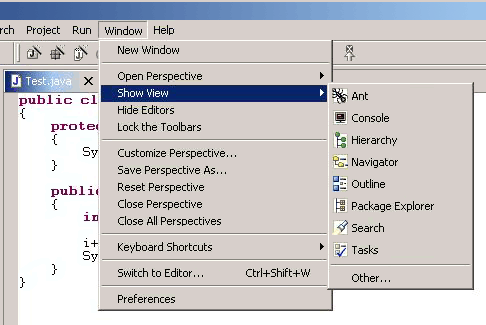
The application development lifecycle should be considered when populating the the Window - Open Perspective menu. The development of most applications follow a well defined lifecycle, from designing / modeling, to editing / creating, to debugging / testing, to assembling / deploying. Each perspective will fall into one of these steps. The Open Perspective menu should be used to link the current perspective to perspectives that support tasks immediately downstream of the current one, as well as tasks further upstream, to allow for iterative development.
For instance, the Java perspective is used in a larger lifecycle, involving Java and Debug tasks. The Window > Open Perspective menu is populated with each of these perspectives.
Guideline
8.6
Populate the window menu bar with commands and command sets which are appropriate to the task orientation of the perspective, and any larger workflow.
For instance, imagine a scenario where the user selects an object and invokes a command. In the perspective where the command is invoked, the user may have a set of views and editors open. These represent the working state, or context, of the user. If a new perspective is created, that context will be left behind, forcing the user to recreate the context. This is time wasted.
Guideline
8.7
A new perspective should be opened only if the user explicitly states a desire to do so. In making this statement, the user agrees to leave their old context, and create a new one.
In some cases, a new perspective is opened as the side effect of another command. For instance, if users start debugging their application code, they may be switched to the Debug perspective. If this behavior is implemented, the user should have the option to turn this behavior off. The option can be exposed in the command dialog, or within a Preference page.
Guideline
8.8
If a new perspective is opened as a side effect of another command, the user should be able to turn this behavior off.
If a new perspective is opened, it may be opened within the current window, or in a new window. The user controls this option using the Workbench preferences. If code within a plug-in opens a new perspective, the plug-in should honor the user preference.
Guideline
8.9
If a new perspective is opened, it should be opened within the current window, or in a new window, depending on the user preference.
With regard to command contributions applied to the New, Open Perspective, and Show View menus, the list of wizards, perspectives, and views added as shortcuts to these menus should be at most 7 plus / minus 2 items.
Guideline
8.10
The list of shortcuts added to the New, Open Perspective, and Show View menus should be at most 7 plus / minus 2 items.
Guideline
9.1
Use an Action Set to contribute actions to the window menu bar and toolbar.
The window menu bar contains a number of pulldown menus: File, Edit, Navigate, Project, Window, and Help. Each of these has a different purpose, which will be explained in the following paragraphs. For consistency with the action sets contributed by other plug-ins, the commands within an action set should conform to the existing distribution of actions in the window. There is no need to group the actions in a separate pulldown menu of the menu bar.
The File menu contains file oriented actions, such as Save, Close, Print, Import, Export and Exit. The contents of the File > New menu are determined by the perspective type. However, the user may add or remove items using the Window -> Customize Perspective... menu item. The contents of the Import and Export dialogs are populated with every import and export wizard, respectively.
The Edit menu contains editor oriented actions, such as Undo, Redo, Cut, Copy, and Paste. These actions target the active part (as indicated by a shaded title bar) . It is very common for an editor to add items to this menu. However, it is uncommon for an action set to add actions to the Edit Menu; action sets tend to be global in nature, while the edit menu targets a specific part, and interaction with the data in that part.
The Navigate menu contains navigational actions such as Go to, Open Type, Show In, to enable users to browse laterally or drill down in their code.
The Project menu contains actions which apply to the contents of the workspace, such as Rebuild All and Open Type. An action set may add actions which search the entire workspace, generate project info and so on.
The Window menu contains actions which apply to window management and system preferences. It also contains the Open Perspective and Show View submenu which contains actions affecting the state of the window contents.
Guideline
9.2
Follow the platform lead when distributing actions within an Action Set.
The toolbar contains the most commonly used actions of the menu bar. In reflection of this, you should contribute actions to the menu bar first, and then to the toolbar if they will be frequently used.
Guideline
9.3
Contribute actions to the window menu bar first, and then to the window toolbar if they will be frequently used.
The contents of each action set should be defined using a task oriented approach. For instance, the Java action set contains actions to create a new package, class and interfaces. It also contains a command to open an editor on a class, Goto Type. These form a cohesive set of related actions, which can be turned on and off by the user, depending on the active task.
Guideline
9.4
Define each action set with a specific task in mind.
The size of an action set is also important. If an action set is too large, it will flood the menu or toolbar, and reduce the users ability to customize the menu and toolbar. At the same time, if an action set is too small, the user may find customization of the menu and toolbar is too labor intensive. Break an action set up when it has more than about 7 items.
There is no magic number for the size of an action set, but it should be carefully designed to contain the smallest possible semantic chunking of actions. Avoid the temptation to provide only one action set for an entire plug-in.
Guideline
9.5
An action set should contain the smallest possible semantic chunking of actions. Avoid the temptation to provide only one action set for an entire plug-in.
An action set can be used to share a set of actions between two or more views and editors. For instance, a Java Refactor action set may be applicable to the selection within a Java Editor, an Outline view, and a Hierarchy View. In this situation the actions can be shared by defining an action set extension for the workbench. Once this action set has been defined, it can be automatically included in a perspective by the perspective developer, or added to a perspective by the user.
An action set should not be used to promote command from a single view to the window menu bar and toolbar. This simply clutters up the user interface.
Guideline
9.6
Use an action set to share a set of actions which are useful in two or more views or editors.
The set of visible command in a window may be changed by invoking Window > Customize Perspective. Within the resulting dialog, you can add or remove items from the File > New menu, Window > Open Perspective menu, or Window > Show View menu. It is also possible to add or remove action sets. In general, the visible action sets should be controlled by the user, and should never be changed programmatically. There are two reasons for this. First, users like to control the environment, not be controlled. And second, the user is in the best position to understand the active task, and the appropriate action sets for its completion.
Guideline
9.7
Let the user control the visible action sets. Don't try to control it for them.
A common example of a command which may be added to an action set is Navigate
> Open Type. This command can be used to open an editor on a type
which is not visible in the current window, and is a form of lateral navigation.
In general, all Open actions which take the form should be added to the
Navigate menu, for consistency.
Guideline
9.8
"Open Object" actions must appear in the Navigate pulldown menu of the window.
Guideline
9.9
Always use the global status bar to display status related messages.
Within Eclipse, there are two ways to edit the properties of an object: in the Properties dialog, and in the Properties view. Each of these is applicable in different situations.
The Properties view is commonly used to edit the properties for a set of objects in an editor, where quick access to the properties is important, and you switch from one object to another quickly.
Guideline
10.1
Use the Properties view to edit the properties of an object when quick access is important, and you will switch quickly from object to object.
The properties for an object should be quick to calculate. If it is too expensive to calculate the properties for an object, the quick access to properties offered by the Properties view becomes worthless. In this situation, where quick access is not possible, a Properties Dialog should be used.
Guideline
10.2
Use a Properties Dialog to edit the properties of an object which are expensive to calculate.
In some cases, the properties for an object are dependent upon one another,
such that a change in one will affect another, or even enable / disable
the option to change another. In this situation, a Properties Dialog
may be a better way to represent the semantic link between these properties.
Guideline
10.3
Use a Properties Dialog to edit the properties of an object which contain complex relationships to one another.
When both the Properties view and the Properties Dialog are used to present and edit properties of an object, the Properties Dialog should contain the superset of items shown in the Properties view.
Guideline
10.4
Properties Dialog should contain the superset of items shown in the Properties view.
Guideline
11.1
For Tree and Table widgets that have a checkbox associated with a cell item, changing the current selection should not automatically change the check state of the selected item. However, the current selection should be set to a given item when its check state is changed.
As a plug-in developer, you should try to add new actions to the existing
parts. This leads to better integration with the platform, and the
existing knowledge of the user.
Guideline
12.1
If appropriate, add actions to standard components of Eclipse using the plug-in registry.
When extending the standard components such as the Navigator, Outline,
Properties, Tasks, and Bookmark views, make sure your specialized components
carry over the base component's characteristics (drag and drop support,
keyboard navigation, selection behaviour, etc.)
Guideline
12.2
If you subclass or copy any of the standard components, always carry over the standard components' characteristics.
Guideline
13.1
Add actions to the Navigator View menu, toolbar, and context menu using the plug-in registry.
If object contributions are made to the context menu, try to qualify the target object as much as possible, to avoid adding the command to the wrong objects in the Navigator. For instance, a Java command may target IFiles with a .java extension, or IProjects with a Java nature. It will cause confusion if Java actions appear on non-java objects.
Some actions are a reflection of tool use, rather than object type. For instance, a repository plug-in may provide actions for file check in, check out, etc. These actions should only appear on the resources in the Navigator if the user has actively chosen to use the repository tool. To control the visibility of these actions, the plug-in should apply a project nature to the managed resources, and use the project nature attribute in all context menu contributions.
For more information on command filtering, refer to Creating an Eclipse View. The standard attributes for resources are defined in IResourceActionFilter.java (see below).
public interface IResourceActionFilter extends IActionFilter {
        public static final String NAME = "name";
        public static final String EXTENSION = "extension";
        public static final String PATH = "path";
        public static final String READ_ONLY = "readOnly";
        public static final String PROJECT_NATURE = "projectNature";
}
The standard attributes for project filtering are defined in IProjectActionFilter.java.
public interface IProjectActionFilter extends IResourceActionFilter {
        public static final String NATURE = "nature";
        public static final String OPEN = "open";
}
Guideline
13.2
Use the attributes defined in IResourceActionFilter.java and IProjectActionFilter.java to control the visibility of context menu actions in the Navigator.
A "Navigate -> Show In Navigator" command should be included in any view where a resource may appear. If invoked, the command should select and reveal the resource in the navigator.
Guideline
13.3
Use a "Navigate -> Show In Navigator" command in each view, to link resources back to the Navigator."
Guideline
14.1
Add markers (tasks, errors and warnings) to the Tasks view using the Marker Manager services from the Core Resources Management plugin.
The Tasks view is a table, containing columns for the task image, completion status, priority, description, resource, and line number. The description text of each marker should be short and concise, so that it will fit in the status line of Eclipse.
Guideline
14.2
The description text of each marker should be short and concise, so that it will fit in the status line of Eclipse.
Guideline
14.3
Add actions to the Tasks view menu, toolbar, and context menu using the plug-in registry.
If object contributions are made to the context menu, try to qualify the target object as much as possible, to avoid adding the command to the wrong objects in the Tasks view. At an implementation level, each object in the Tasks view is a marker, a general mechanism for associate notes with a resource. Use the attributes within IMarkerActionFilter.java to control the visibility of Task object actions (see below). For more information on command filtering, refer to Creating an Eclipse View.
public interface IMarkerActionFilter extends IActionFilter {
        public static final String TYPE = "type";
        public static final String SUPER_TYPE = "superType";
        public static final String PRIORITY = "priority";
        public static final String SEVERITY = "severity";
        public static final String DONE = "done";
        public static final String MESSAGE = "message";
}
Guideline
14.4
Use the attributes defined in IMarkerActionFilter.java to control the visibility of context menu actions in the Tasks view.
If appropriate, support for the creation of new task objects in an editor
should be implemented by the editor. For more information on this,
see Editors.
Guideline
14.5
Support F1 keyboard command and link it to an infopop that gives a detailed description of the selected item in the Task view.
A new preference page should be created when you need to expose global options to the user. For instance, the global preferences for Java compilation are exposed as a group of preference pages in the Preference Dialog. If these preferences are changed, they affect the entire Java plug-in.
Guideline
15.1
Global options should be exposed within the Preferences Dialog.
A preference page should not be used to expose the local options for a particular instance of a view, editor, or window. In this situation, the user will look to the menu and toolbar of the control itself to customize it. If these options are exposed in the Preference Dialog, it will blur the location of customization, and confuse the user.
Guideline
15.2
Expose the preferences for a particular view, editor or window in the view itself, via a menu or tool item.
Guideline
15.3
Start out with a single preference page. Then evolve to more if you need to.
In a nested design, a root preference page is added to the preference dialog, and then sub pages are added to the root preference page. The root preference page should never be blank. Instead, it should contain the most commonly used preferences, or those preferences which have a wide spread effect upon the plug-in behavior. Beneath the root page, a sub page should be created for each major chunk of functionality within the plug-in.
There is no reason to set the focus in a preference page, because focus is always set to the tree, by the Eclipse platform, after the preference page is made visible.
Guideline
15.4
If you create a preference group, use the root page for frequently used preferences, or those preferences which have wide spread effect. Specialize within the sub pages. The root preference page should not be blank.
Each new plug-in should integrate its plug-in preferences, wizards,
and views into existing preference, wizard, and view categories where it
makes sense, rather than the blind creation of new categories for itself.
Guideline
15.5
Attempt to integrate plug-in preferences, wizards, and views into existing categories for a new plug-in first, before considering the creation of a new category.
If you are an editor developer, the relationship between an editor and the Outline view is important. For more information on the collaboration between these two, see Editors.
Within Eclipse, the properties for an object can be exposed using a Properties dialog, or the Properties view. The Properties view is commonly used to edit the properties for a set of objects in an editor, where quick access to the properties is important, and you switch from one object to another quickly.
For more information on the use of the Properties view, or Properties dialog, refer to Properties.
In an editor, bookmark objects are commonly used to mark a location within a document. Once a bookmark has been created, it appears in the Bookmarks view. If this bookmark is selected, you may reopen the editor at the location defined in the bookmark.
If appropriate, support for the creation of new bookmark objects should be implemented by the editor. For more information on this, see Editors.
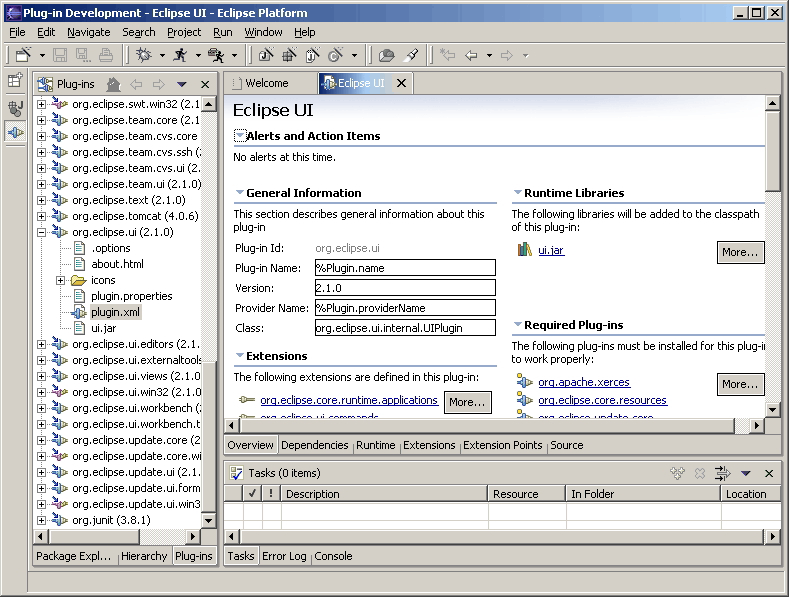
The Flat Look design may be more suitable for certain type of user tasks, and more appealing to certain user profile. However, this design should not be used just because it provides a different look than the native platform look and feel. The use of Flat Look design should be considered in the context of the supported user scenarios. This design is usually a good fit for extensive property and configuration editing, such as editing Eclipse's plugin.xml file, and J2EE Web application's deployment descriptors.
Guideline
16.1
Use Flat Look design for user scenarios that involve extensive property and configuration editing.
When required, use a "More..." button for navigation purpose (function similar to a hyperlink).
On the overview page, initially expand basic or core sections, but collapse advanced sections. On non-overview pages, provide a "Home" icon which takes users back to the overview page
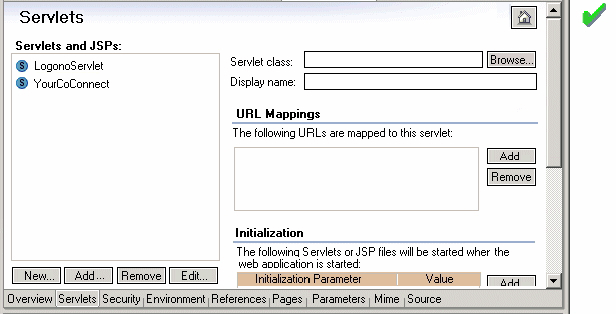
Guideline
16.2
Have the core sections on the overview page expanded, and provide a "Home" icon on other pages to take users back to the overview page.
Don't use tabs within a Flat Look editor tab. Use an alternative design or rendering of the tabs.

When applicable, always provide a "Source" tab. Assign mnemonics for sections, controls, etc. for keyboard navigation.
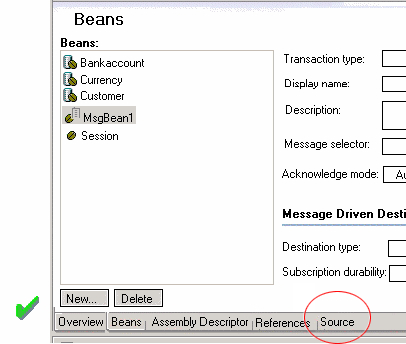
In the outline view, use grouping elements corresponding to tabs in the content editor for the organization of the tree view.
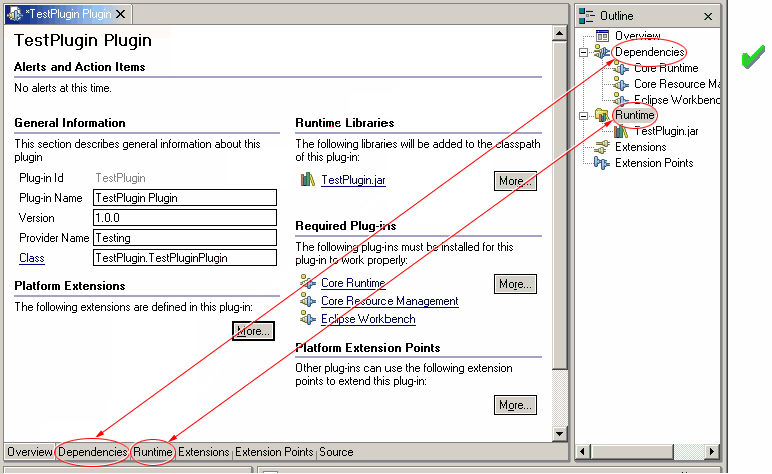
Guideline
16.3
Use grouping elements corresponding to tabs in the Flat Look content editor for the organization of the tree view in outline view.
The resource concept was developed for a number of reasons:
Resources are also important at the UI level. If an object
command, decorator, or property page contribution is made to an IResource,
the platform will ensure that this contribution is visible in any view
or editor where the resource appears. For instance, a .java file
will be visible in the Navigator, the Hierarchy view, and the Packages
view. To the user, the .java file is the same object, regardless
of the view where it appears, so the object appearance, context menu, and
properties should be consistent in each view.
In some cases, the implementation of a particular view or editor may wrap a resource within another object, for presentation purposes. If the wrapper is equivalent to a resource, it is important to expose this equivalence to the platform. If the resource is exposed, the platform may apply resource contributions to the resource equivalent object. This ensures presentation consistency for an object in the platform.
The underlying resource for an object is exposed by implementing IAdaptable on the model object, and answering an IContributorResourceAdapter. For more information on the implementation of an IContributorResourceAdapter, refer to Eclipse Corner.
Guideline
17.1
Expose the resource for resource equivalent model objects using an IContributorResourceAdapter.
In a dialog or wizard, a shortcut key should be
defined for each button or control. The shortcut key should be displayed
with an underline beneath the appropriate shortcut character.
Guideline
18.1
All of the features provided by a tool should be accessible using a mouse or the keyboard.
| Key | {Key} by itself | SHIFT+{Key} | CTRL+{Key} | CTRL+SHIFT+{Key} | ALT+{Key} | CTRL+ALT+{Key} |
| A | Edit / Select All | |||||
| B | Project / Build | (View) Bookmarks | ||||
| C | Edit / Copy | |||||
| D | (JDT editor) Display | |||||
| E | (JDT editor) Next Problem | (JDT editor) Previous Problem | ||||
| F | Edit / Find / Replace | |||||
| G | ||||||
| H | Edit / Search | |||||
| I | ||||||
| J | ||||||
| K | (View) Tasks | |||||
| L | Edit / Go to Line | |||||
| M | (JDT editor) Add Import | (JDT) Refactor / Move | ||||
| N | File / New / Other | (View) Navigator | ||||
| O | (JDT editor) Organize Imports | (View) Outline | ||||
| P | File / Print | (View) Properties | ||||
| Q | (JDT editor) Inspect | |||||
| R | ||||||
| S | File / Save | File / Save All | Window / Switch to Editor | |||
| T | (JDT) Open Type | |||||
| U | ||||||
| V | Edit / Paste | |||||
| W | ||||||
| X | Edit / Cut | (JDT) Refactor / Extract method | ||||
| Y | Edit / Redo | (JDT) Refactor / Redo | ||||
| Z | Edit / Undo | (JDT) Refactor / Undo | ||||
| Space | (JDT editor) Content Assist | |||||
| Backspace | Windows: Undo | |||||
| Tab | (JDT editor) Shift Right | (JDT editor) Shift Left | ||||
| Insert | Windows: Paste | Windows: Copy | ||||
| Delete | Edit / Delete | Windows: Cut | Edit / Delete | |||
| Home | ||||||
| End | ||||||
| Page Up | ||||||
| Page Down | ||||||
| Insert | ||||||
| Delete | ||||||
| Hyphen (-) | Show System Menu | Show View Menu | ||||
| Left Arrow | ||||||
| Right Arrow | ||||||
| Up Arrow | ||||||
| Down Arrow | ||||||
| F1 | Help | Help | Help | Help | ||
| F2 | (Navigator view) Rename, (JDT editor) Open JavaDoc | |||||
| F3 | (JDT editor) Open on Selection | |||||
| F4 | (JDT editor) Open Type Hierarchy | File / Close All | File / Close | |||
| F5 | (Navigator view) Refresh, (Properties view) Refresh, (Debug) Step Into | |||||
| F6 | (Debug) Step Over | Next Editor | Previous Editor | |||
| F7 | (Debug) Run to Return | Next View | Previous View | |||
| F8 | (Debug) Resume | |||||
| F9 | ||||||
| F10 | (Debug) Relaunch last | |||||
| F11 | (Debug) Debug | (Debug) Run | ||||
| F12 | Activate Editor | Activate Editor |
In this section, we provide examples of best practices for designing and implementing some common user interactions within the Eclipse platform.
Provide on the fly syntax checking if possible. Use red "squiggle" to indicate where the potential error is located in the source code. Use a red box on the side bar on the right side to indicate the approximate error position in the file. Use a prominent marker on the upper right hand corner to indicate that the file contains errors or warnings. Use red color to indicate errors, and use yellow to indicate warnings.
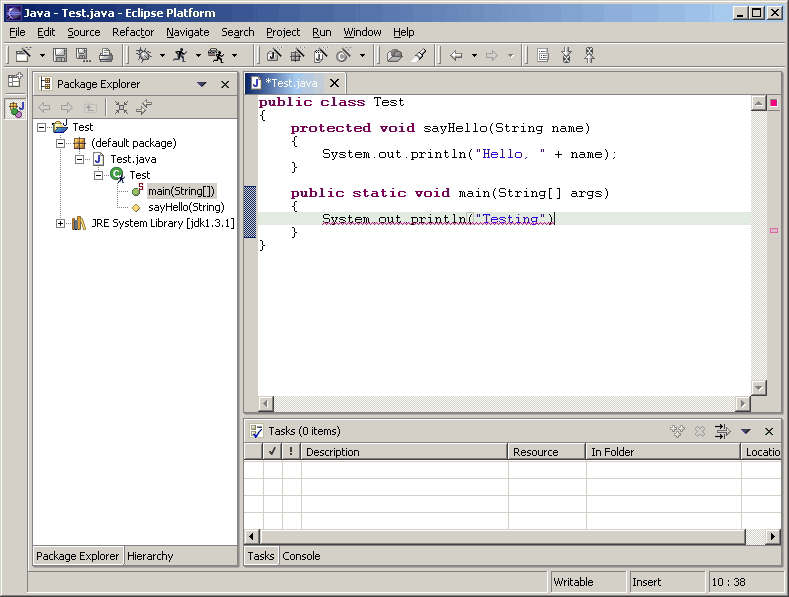
After users perform a save operation, user a more prominent marker on the left hand side margin to indicate errors and warnings in the file. When using the mouse pointer to hover over the marker, the description text should be displayed. In addition, show the icon decorator in the content editor tab. In the tree view that shows the resource in the Eclipse workspace, use icon decorator to indicate errors or warnings associated with this resource, and propagate the icon decorator indication up to the parents of the resource in the tree view. Finally, an entry should be added to the Task view to list the errors and warnings.
Even when there are no syntax errors in the file, users should be able to obtain certain quick assistance with their code using the Quick Fix mechanism. For example, assigning an expression to a local variable.
If an editor is used for writing code in a given programming language, hyper-linked code support should be enabled. While using the mouse pointer to hover over the source code, pressing the Ctrl key will turn the programming language constructs such as class, method, and field identifiers into clickable links to the corresponding declaration.
When possible, a plug-in should provide refactoring support at the programming language or application development level. For example, if users rename a method in a Java class, refactoring support should enable users to automatically find and fix up all references. If users change the URL for a given resource in a Web application, refactoring support should enable users to automatically update the references to the modified URL.
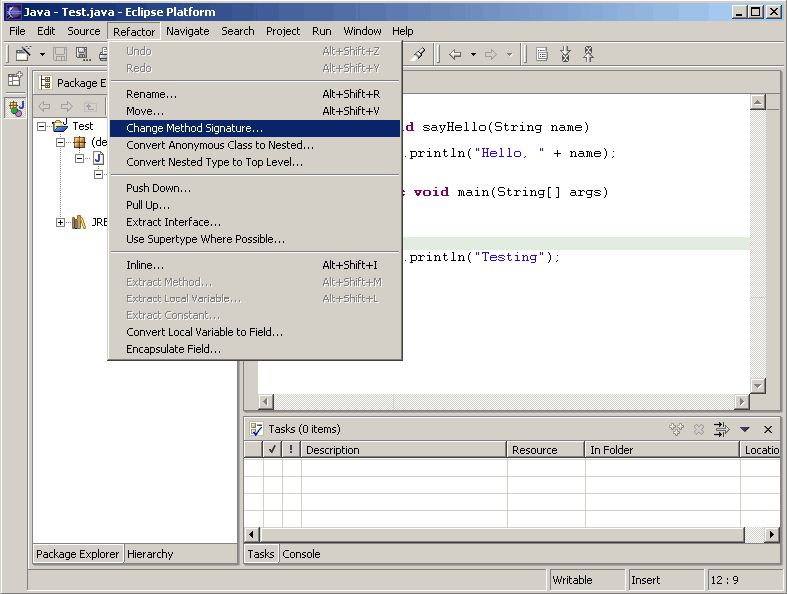
First, remove menu items that are not sensitive to selections. Second, remove menu items that are not frequently used. Third,?examine the items that are not sensitive?to selection but are frequently used. Add at most of 5 of these items back. Fourth,?remove all disabled menu items, except for clipboard operations such as copy and paste, and team, compare and replace submenus. Fifth, remove menu items that are frequently used, selection sensitive, but have a dominant keyboard shortcut key defined, except for clipboard and save operations.
Use Title capitalization for section titles. The distance between section columns should be 32 pixels.
On pages with listbox on the left hand side, the distance be between the list box and the right-hand column (e.g. showing properties for a selected listbox item) should be 10 pixels.
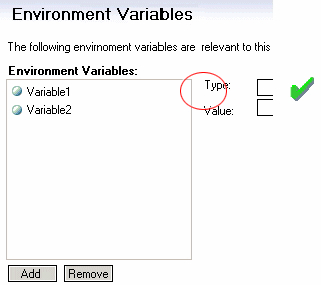
For labels and fields, use RGB value (160, 160, 164) for enabled state, RBG value (0, 0, 0) for read-only state, and RBG value (128, 128, 128) for disabled state.
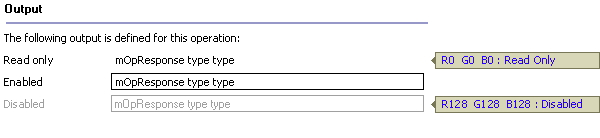
For listbox control, use RBG value (0, 0, 0) for the border to indicate enabled state, use RBG value (128, 128, 128) for disabled state.
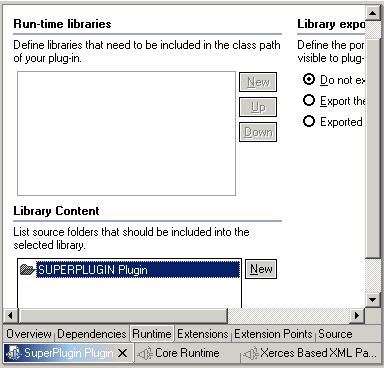
Implementation tip:
It is very important to design custom decorators that don't conflict with basic decorations provided by different Eclipse views. For example, the package explorer view decorates Java files with problem markers (a problem marker is placed at the bottom left hand corner) if there are compilation errors. It is a bad practice to decorate resources with custom decoration exactly at the position of a problem marker and developers should avoid this. If the custom decoration is performed at the bottom left corner, then custom decoration and the problem marker decoration, if any, conflict each other and hence users will not be able to view the decorations. The solution to the above mentioned problem is to provide a custom image decoration at the bottom right corner which does not conflict with the basic image decoration provided by Eclipse. The top left corner is the second best place although it conflicts with the binary project decorator. The bottom left and top right should be avoided as they are decorated outside of the decorator mechanism
 Guideline 1.1
Follow and apply good user interface design principles: user in control, directness, consistency, forgiveness, feedback, aesthetics, and simplicity.
Guideline 1.2
Follow the platform lead for user interface conventions.
Guideline 1.3
Be careful not to mix UI metaphors. It may blur the original concept, and your own application.
Guideline 1.4
If you have an interesting idea, work with the Eclipse community to make Eclipse a better platform for all.
Guideline
1.5
Use Headline style capitalization for menus, tooltip and all titles, including those used for windows, dialogs, tabs, column headings and push buttons. Capitalize the first and last words, and all nouns, pronouns, adjectives, verbs and adverbs. Do not include ending punctuation.
Guideline 1.6
Use Sentence style capitalization for all control labels in a dialog or window, including those for check boxes, radio buttons, group labels, and simple text fields. Capitalize the first letter of the first word, and any proper names such as the word Java.
Guideline 1.7
Create localized version of the resources within your plug-in.
Guideline
1.8
When an error occurs which requires either an explicit user input or immediate attention from users, communicate the occurrence with a modal dialog.
Guideline
1.9
If a programming error occurs in the product, communicate the occurrence with a dialog, and log it.
Guideline 2.1
Re-use the core visual concepts to maintain consistent representation and meaning across Eclipse plug-ins.
Guideline 2.2
Use the Eclipse 256 color palette for creating the active or selected state of all icon types.
Guideline 2.3
Use the Eclipse 8 color palette for creating the enabled state of perspective, view, toolbar, toolbar wizard, and local toolbar icons.
Guideline 2.4
Use the Eclipse 2 color palette for creating the disabled state of toolbar, toolbar wizard, and local toolbar icons.
Guideline 2.5
Use the appropriate icon type in the location it is designed for within the user interface.
Guideline 2.6
Follow the specific size specifications for each type of icon.
Guideline 2.7
Cut the icons with the specific placement shown to ensure alignment in the user interface.
Guideline 2.8
Follow the positioning guidelines for the different types of icons for optimal alignment of these elements relative to one another.
Guideline 2.9
Use the Eclipse special blue 183 color palette for creating wizard graphics.
Guideline 2.10
Follow the specific size specifications for wizard graphics.
Guideline 2.11
Cut the wizard graphics with the specific placement shown to ensure alignment in the wizard banner area.
Guideline 2.12
Follow the predefined directory structure and naming convention.
Guideline 2.13
Keep the original directory names provided.
Guideline 2.14
Minimize duplication of graphics within a plugin by keeping all graphics in one, or few, first level user interface directories.
Guideline 2.15
Use the active, enabled, and disabled states provided.
Guideline 2.16
Abbreviate file name instead of using the full icon name, e.g. New Interface becomes "newint".
Guideline 2.17
Use lower case characters in your file names, e.g. DTD becomes "dtd".
Guideline 2.18
Use 10 characters or less in your file names if possible (underscores count as a character).
Guideline 2.19
Use a file name suffix that describes its location or function in the tool, e.g. newint_wiz.
Guideline 2.20
Use transparent *.gif format for all user interface icons and wizard graphics, unless the context requires a different file format.
Guideline 2.21
Keep the original file names provided.
Guideline
3.1
Each command must have a label, tool tip, and full color image. The label and tool tip must use Headline style capitalization.
Guideline
3.2
The command tooltip should describe the result of the command, not the current state of the command. Use the text same as that for the command label.
Guideline
3.3
Adopt the labeling terminology of the workbench for New, Delete and Add commands.
Guideline
3.4
A command should only be enabled if it can be completed successfully.
Guideline
3.5
Command enablement should be quick. If command enablement cannot be quick, enable the command optimistically and display an appropriate message if the command is invoked, but cannot be completed.
Guideline 4.1
When a dialog opens, set the initial focus to the first input control in the container. If there are no input controls, the initial focus should be assigned to the default button.
Guideline 4.2
Slush Bucket widget (or Twin Box) should flow from left to right with the source objects on the left hand side. It should have the >, <, >>, << control buttons in this order.
Guideline
5.1
Use a wizard for any task consisting of many steps, which must be completed in a specific order.
Guideline
5.2
Each wizard must contain a header with a banner graphic and a text area for user feedback. It must also contain Back, Next, Finish, and Cancel buttons in the footer.
Guideline
5.3
Start the wizard with a prompt, not an error message.
Guideline
5.4
Seed the fields within the wizard using the current workbench state.
Guideline
5.5
Validate the wizard data in tab order. Display a prompt when information is absent, and an error when information is invalid.
Guideline
5.6
Only enable the Next / Finish buttons if all required information in the dialog is present and valid.
Guideline
5.7
Remove all programming message ID's from wizard text.
Guideline
5.8
Use a Browse Button whenever an existing object is referenced in a wizard.
Guideline
5.9
If a new file is created, open the file in an editor. If a group of files are created, open the most important, or central file in an editor. Open the readme.html file upon creation of an example project.
Guideline
5.10
If a new project is created, prompt users and change the active perspective to suit the project type.
Guideline
5.11
If a new object is created, select and reveal the new object in the appropriate view.
Guideline
5.12
Create folder objects in a wizard if reasonable defaults can be defined.
Guideline
5.13
Use the term "Project name" for the input field label when the item must be a Project; otherwise, use the term "Folder name". Do not qualify the term.
Guideline
6.1
Use an editor to edit or browse a file, document, or other primary content.
Guideline
6.2
Modifications made in an editor must follow an open-save-close lifecycle model.
Guideline
6.3
Only one instance of an editor may exist, for each editor input, within a perspective.
Guideline
6.4
It must be possible to open a separate instance of an editor for each different input.
Guideline
6.5
The editor should be labeled with the name of the file, document, or input being edited.
Guideline
6.6
In multipage editors, use a tab control for page activation.Tab labels should be kept to one word, and two words at most.
Guideline
6.7
All of the commands, except for the obvious commands, available in the editor should be added to the window menu bar.
Guideline
6.8
Use the standard format for editor contributions in the window menu bar.
Guideline
6.9
If an editor has support for Cut, Copy, Paste, or any of the global commands, these commands must be executable from the same commands in the window menu bar and toolbar.
Guideline
6.10
Fill the editor toolbar with the most commonly used items in the view menu.
Guideline
6.11
Fill the context menu with selection oriented commands.
Guideline
6.12
Use the standard format for editor context menus.
Guideline
6.13
Fill the context menu with a fixed set of commands for each selection type, and then enable or disable each to reflect the selection state.
Guideline
6.14
Register all context menus in the editor with the platform.
Guideline
6.15
Implement a Command Filter for each object type in the editor.
Guideline
6.16
If the input to an editor is deleted, and the editor contains no changes, the editor should be closed.
Guideline
6.17
If the input to an editor is deleted, and the editor contains changes, the editor should give the user a chance to save their changes to another location, and then close.
Guideline
6.18
If the resource is dirty, prefix the resource name presented in the editor tab with an asterisk.
Guideline
6.19
Treat read-only editor input as you would any other input. Enable the Save As if possible. Display "Read-only" in the status bar area.
Guideline
6.20
If the data within an editor is too extensive to see on a single screen, and will yield a structured outline, the editor should provide an outline model to the Outline view.
Guideline
6.21
Notification about location between an editor and the Outline view should be two-way. A context menu should be available in the Outline view as appropriate.
Guideline
6.22
An error or warning image should be added to items with the error or warning respectively. A container should have a red X if it there are errors on the container itself, a gray X if any of its descendents have errors (but not the container itself), and no X if neither the container nor any of its descendents have errors.
Guideline
6.23
If appropriate, implement the "Add Task" feature in your editor.
Guideline
6.24
If appropriate, implement the "Add Bookmark" feature in your editor.
Guideline
6.25
Editors with source lines of text should show the current line and optionally column numbers the status line. It's optional for the editor to show line numbers for each line in the editor itself.
Guideline
6.26
Table cell editors should support the single-click activation model, and in edit mode, they should render complex controls upon single-click.
Guideline
6.27
Changes made in a table cell editor should be committed when a user clicks off the cell or hits the "Enter" key. Selection should be cancelled when user hits the "Esc" key.First letter navigation should be supported as a cursoring mechanism within a cell.
Guideline
6.28
When performing fine-grain error validation in an editor, use red squiggles to underline the invalid content. When users move the mouse over the red squiggles, display the error text in a fly-over pop up box.
Guideline
6.29
Use the Task view to show errors found when the Save command is invoked.
Guideline
6.30
If modifications to a resource are made outside of the workbench, users should be prompted to either override the changes made outside of the workbench, or back out of the Save operation when the Save command is invoked in the editor.
Guideline
7.1
Use a view to navigate a hierarchy of information, open an editor, or display the properties of an object.
Guideline
7.2
Modifications made within a view must be saved immediately.
Guideline
7.3
Only one instance of a view may exist in a perspective.
Guideline
7.4
A view must be able to be opened in more than one perspective.
Guideline
7.5
A view can be opened from the Window > Show View menu.
Guideline
7.6
The view label in the title bar must be prefixed with the label of the view in the Perspective > Show View menu.
Guideline
7.7
If a view contains more than one control, it may be advisable to split it up into two or more views.
Guideline
7.8
When a view first opens, derive the view input from the state of the perspective.
Guideline
7.9
If a view displays a resource tree, consider using the window input as the root of visible information in the view.
Guideline
7.10
Use the view pulldonw menu for presentation commands, not selection-oriented commands.
Guideline
7.11
Use the standard order of commands for view pulldown menus.
Guideline
7.12
Put only the most commonly used commands on the toolbar. Any command on a toolbar must also appear in a menu, either the context menu or the view menu.
Guideline
7.13
Fill the context menu with selection oriented actions, not presentation actions.
Guideline
7.14
Use the standard order of commands for view context menus.
Guideline
7.15
Fill the context menu with a fixed set of commands for each selection type, and then enable or disable each to reflect the selection state.
Guideline
7.16
If an object appears in more than one view, it should have the same context menu in each.
Guideline
7.17
Register all context menus in the view with the platform.
Guideline
7.18
Implement a Command Filter for each object type in the view.
Guideline
7.19
If a view has support for Cut, Copy, Paste, or any of the global commands, these commands must be executable from the same commands in the window menu bar and toolbar.
Guideline
7.20
Persist the state of each view between sessions.
Guideline
7.21
Navigation views should support "Link with Editor" on the view menu
Guideline
8.1
Create a new perspective type for long lived tasks, which involve the performance of smaller, non-modal tasks.
Guideline
8.2
If you just want to expose a single view, or two, extend an existing perspective type.
Guideline
8.3
The size and position of each view in a perspective should be defined in a reasonable manner, such that the user can resize or move a view if they desire it. When defining the initial layout, it is important to consider the overall flow between the views (and editors) in the perspective.
Guideline
8.4
If a perspective has just one part, it may be better suited as a view or editor.
Guideline
8.5
If it is undesirable to have an editor area in a perspective, hide it. Do not resize the editor area to the point where it is no longer visible.
Guideline
8.6
Populate the window menu bar with commands and command sets which are appropriate to the task orientation of the perspective, and any larger workflow.
Guideline
8.7
A new perspective should be opened only if the user explicitly states a desire to do so. In making this statement, the user agrees to leave their old context, and create a new one.
Guideline
8.8
If a new perspective is opened as a side effect of another command, the user should be able to turn this behavior off.
Guideline
8.9
If a new perspective is opened, it should be opened within the current window, or in a new window, depending on the user preference.
Guideline
8.10
The list of shortcuts added to the New, Open Perspective, and Show View menus should be at most 7 plus / minus 2 items.
Guideline
9.1
Use an Action Set to contribute actions to the window menu bar and toolbar.
Guideline
9.2
Follow the platform lead when distributing actions within an Action Set.
Guideline
9.3
Contribute actions to the window menu bar first, and then to the window toolbar if they will be frequently used.
Guideline
9.4
Define each action set with a specific task in mind.
Guideline
9.5
An action set should contain the smallest possible semantic chunking of actions. Avoid the temptation to provide only one action set for an entire plug-in.
Guideline
9.6
Use an action set to share a set of actions which are useful in two or more views or editors.
Guideline
9.7
Let the user control the visible action sets. Don't try to control it for them.
Guideline
9.8
"Open Object" actions must appear in the Navigate pulldown menu of the window.
Guideline
9.9
Always use the global status bar to display status related messages.
Guideline
10.1
Use the Properties view to edit the properties of an object when quick access is important, and you will switch quickly from object to object.
Guideline
10.2
Use a Properties Dialog to edit the properties of an object which are expensive to calculate.
Guideline
10.3
Use a Properties Dialog to edit the properties of an object which contain complex relationships to one another.
Guideline
10.4
Properties Dialog should contain the superset of items shown in the Properties view.
Guideline
11.1
For Tree and Table widgets that have a checkbox associated with a cell item, changing the current selection should not automatically change the check state of the selected item. However, the current selection should be set to a given item when its check state is changed.
Guideline
12.1
If appropriate, add actions to standard components of Eclipse using the plug-in registry.
Guideline
12.2
If you subclass or copy any of the standard components, always carry over the standard components' characteristics.
Guideline
13.1
Add actions to the Navigator View menu, toolbar, and context menu using the plug-in registry.
Guideline
13.2
Use the attributes defined in IResourceActionFilter.java and IProjectActionFilter.java to control the visibility of context menu actions in the Navigator.
Guideline
13.3
Use a "Navigate -> Show In Navigator" command in each view, to link resources back to the Navigator.
Guideline
14.1
Add markers (tasks, errors and warnings) to the Tasks view using the Marker Manager services from the Core Resources Management plugin.
Guideline
14.2
The description text of each marker should be short and concise, so that it will fit in the status line of Eclipse.
Guideline
14.3
Add actions to the Tasks view menu, toolbar, and context menu using the plug-in registry.
Guideline
14.4
Use the attributes defined in IMarkerActionFilter.java to control the visibility of context menu actions in the Tasks view.
Guideline
14.5
Support F1 keyboard command and link it to an infopop that gives a detailed description of the selected item in the Task view.
Guideline
15.1
Global options should be exposed within the Preferences Dialog.
Guideline
15.2
Expose the preferences for a particular view, editor or window in the view itself, via a menu or tool item.
Guideline
15.3
Start out with a single preference page. Then evolve to more if you need to.
Guideline
15.4
If you create a preference group, use the root page for frequently used preferences, or those preferences which have wide spread effect. Specialize within the sub pages. The root preference page should not be blank.
Guideline
15.5
Attempt to integrate plug-in preferences, wizards, and views into existing categories for a new plug-in first, before considering the creation of a new category.
Guideline
16.1
Use Flat Look design for user scenarios that involves extensive property and configuration editing.
Guideline
16.2
Have the core sections on the overview page expanded, and provide a "Home" icon on other pages to take users back to the overview page.
Guideline
16.3
Use grouping elements corresponding to tabs in the Flat Look content editor for the organization of the tree view in outline view.
Guideline
17.1
Expose the resource for resource equivalent model objects using an IContributorResourceAdapter.
Guideline
18.1
All of the features provided by a tool should be accessible using a mouse or the keyboard.
By agreeing to share selected elements of their user interface designs
(both positive and negative), we feel that these teams have helped make
the UI guidelines stronger.
This covers the more significant changes to the guidelines since Version 1.0:
Added |
General UI Principles : "Decorators" subsection |
| "Visual Design" section covers consistency, design and implementation issues for UI graphics | |
| Component Development : "Widgets" subsection describes some of the recommended designs for Standard Windows Toolkit (SWT) widgets | |
| "Flat Look Design" section for user scenarios that involve extensive property and configuration editing | |
| "Best Practices" section provides examples of best practices for designing and implementing some common user interactions | |
Removed |
Component Development : Perspectives : Opening a perspective in code - Guideline "Consider replacing the perspective type before you open a new perspective" has been removed |
| Component Development : Windows : Actions - "Open Application" has been removed | |
Modified |
Anything referred to as an "action" in Version 1.0 of the guidelines has been changed to "command" in Version 2.1 of the guidelines |
| The full guideline document has been reformatted and the graphical presentation has been updated |